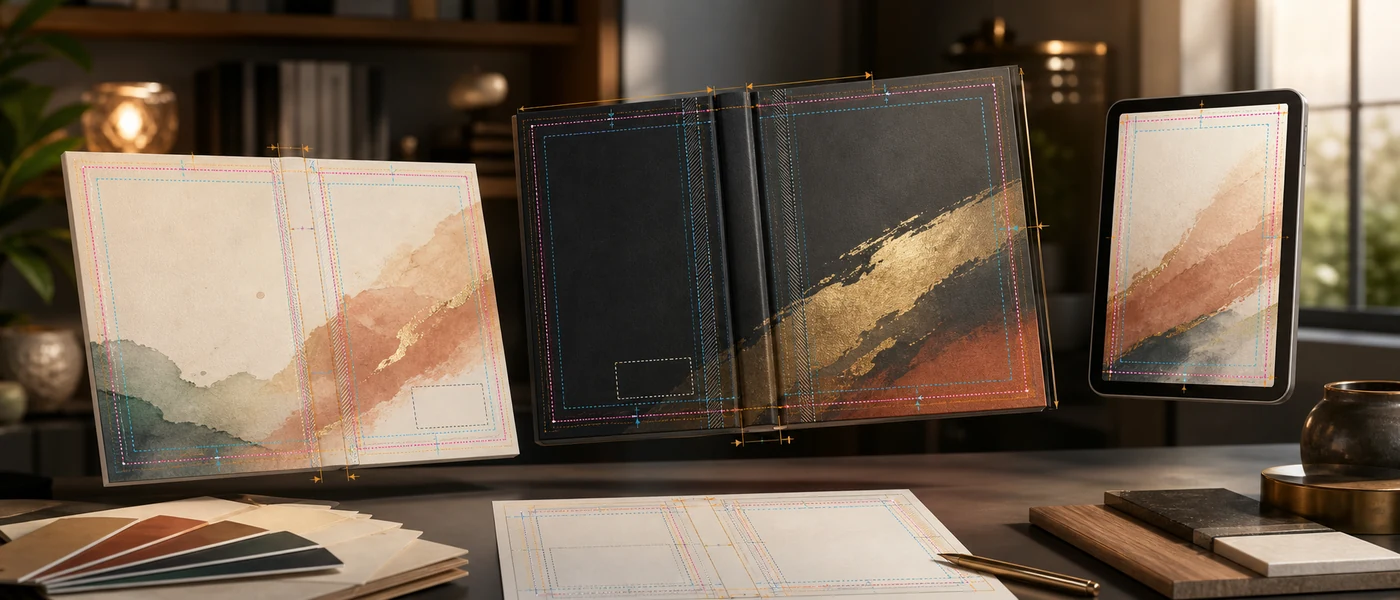
An Amazon KDP book cover template is more than a blank rectangle. It is a production map built around one book's format, trim size, page count, paper type, and bleed settings. The map shows where the front cover, spine, back cover, folds, trim edges, and safe areas belong. When those guides are correct, you can focus on the design without guessing where the printer will cut or fold the finished cover.
Templates matter most for print books because a small measurement error can shift the whole wrap. Kindle ebooks are simpler, but they still need the correct proportions and enough resolution to look sharp on large screens and readable as tiny store thumbnails. This guide explains how each template works, how to avoid common upload problems, and how tools such as Cover Studio AI can turn book specifications into an accurate working canvas.
TL;DR: Choose the Template After the Interior Is Final
- A Kindle ebook needs a front-only portrait image, not a spine or back cover.
- A paperback or hardcover needs one full-wrap file containing the back, spine, and front.
- Final page count and paper type affect spine width, so finish the interior first.
- Use the exact trim size, binding, bleed, and current KDP specifications for that edition.
- Extend backgrounds through bleed, but keep important text and faces inside safe areas.
- Use high-resolution artwork and export print editions as a print-ready PDF.
- Recalculate the template whenever page count, paper, trim size, or binding changes.
If you already know your specifications, the KDP Cover Size Calculator explains the measurements and the Cover Editor can build the working layout automatically.
What Is a KDP Cover Template?
A KDP cover template is a dimensioned guide for creating a cover that fits an Amazon KDP edition. For print, it usually arrives as an image or PDF overlay that you place in a design application. It marks the finished trim, outer bleed, spine, fold boundaries, safe regions, and barcode area. You design beneath the guide, then hide the guide before export.
The template is specific to a set of production inputs. Two 6 × 9-inch paperbacks can require different files if their page counts or paper types differ. A hardcover with the same trim size needs different hinge and wrap allowances. The template is therefore not a reusable piece of decoration; it is a technical plan for one edition.
A book cover template can also mean a reusable visual layout with sample fonts, colors, and image positions. That kind of design template can speed up creative work, but it does not replace the KDP production template. You need both sound design and correct manufacturing geometry.
Why KDP Templates Matter
KDP's previewer checks whether the uploaded cover matches the selected book settings. A visually attractive cover can still fail if its dimensions are wrong, the background stops before bleed, or the spine was calculated from an earlier page count.
An accurate template helps you:
- Match the front and back panels to the chosen trim size.
- Center spine text within the true spine width.
- Protect titles, names, faces, and logos from trim or folds.
- Reserve space for a barcode without covering essential artwork.
- Extend backgrounds far enough to prevent white edges after trimming.
- Export a file whose size agrees with the KDP setup.
Templates also make revisions safer. Instead of nudging objects by eye, you can compare every important element with a visible boundary. For broader composition advice, use the Book Cover Design Guide alongside the technical template.
Template Types Compared
The dimensions below are rules rather than one-size-fits-all numbers. Print width changes with spine width, and hardcover measurements use format-specific allowances.
| Template Type | Required Dimensions | Spine | Bleed | Print Ready |
|---|---|---|---|---|
| Kindle ebook | Portrait front image; commonly 1,600 × 2,560 px | No | No print bleed | No; export a high-quality RGB image |
| Paperback | Back width + calculated spine + front width + outer bleed | Yes; based on page count and paper | Usually required for edge-to-edge artwork | Yes; export the full wrap as PDF |
| Hardcover | Board panels + calculated spine + hinges + wrap allowances | Yes; hardcover-specific | Uses case-laminate wrap areas | Yes; export the hardcover wrap as PDF |
Never turn a paperback PDF into a Kindle image by uploading the whole wrap. Never resize a paperback wrap and call it a hardcover. Reuse the visual system—artwork, colors, type pairing—but rebuild each format on its correct template.
Amazon KDP Paperback Templates
An Amazon KDP paperback template places the back cover on the left, the spine in the middle, and the front cover on the right. The outer canvas includes bleed when the artwork reaches the edge. Vertical guides separate the panels and identify the spine-safe region.
Choose the trim size first
Trim size is the finished page size after cutting, not the size of the complete cover PDF. Common choices include 5 × 8, 5.25 × 8, 5.5 × 8.5, 6 × 9, 7 × 10, and 8.5 × 11 inches. A 6 × 9 paperback needs two 6-inch-wide panels, plus the spine and outer bleed.
Choose trim size before final interior formatting because it affects page flow and total page count. If you change trim size late, the manuscript may gain or lose pages, which changes the spine again. The KDP Cover Size Calculator is a useful checkpoint once pagination is stable.
Calculate the spine from the final page count
Spine width reflects the thickness of the printed pages. Page count and paper type are key inputs, and the applicable formula can vary by production format. Do not measure another book or reuse last year's template. Even a slight error moves both panels relative to the spine.
Thin paperbacks may not qualify for spine text. When spine text is available, keep it comfortably inside the designated safe area rather than filling the full width. Small manufacturing shifts are normal, so breathing room matters.
Amazon KDP Hardcover Templates
A hardcover template is a full-wrap plan for a case-laminate cover. It contains front and back board areas, a spine, hinges where the cover bends, and additional wrap space around the outside. Those hinge and wrap regions make hardcover geometry different from paperback geometry.
Keep titles, author names, logos, and faces away from hinges and outside wraps. A continuous background can cross those areas, but meaningful details may distort or disappear around an edge. Center the spine design using the actual hardcover spine boundaries rather than a paperback measurement.
Hardcover interiors can also paginate differently from paperback editions. Confirm the final hardcover page count and regenerate its template. Cover Studio AI creates a format-aware hardcover canvas so the hinge, board, spine, and safe-area guides remain part of one coordinated workspace.
Kindle eBook Cover Templates
A Kindle cover template is a front-only portrait canvas. It has no physical trim, spine, back cover, barcode box, or print bleed. A commonly recommended working size is 1,600 × 2,560 pixels, which has a 1.6:1 height-to-width ratio. Check KDP's current requirements before publishing because platform guidance can change.
Digital simplicity does not mean design is easy. Most shoppers first see the cover as a small thumbnail. Test whether the title, focal point, and genre signal remain clear at phone size. Fine lines, small subtitles, and low-contrast type may disappear even when the full image looks beautiful.
Use a high-quality RGB image for Kindle delivery. Keep a layered, high-resolution master so you can revise the title or adapt the artwork to print formats later. The Book Cover Font Guide can help you build a title hierarchy that survives thumbnail viewing.
Bleed vs. No Bleed
Bleed is artwork that extends beyond the final cut line. Commercial trimming has small tolerances. If a color or image ends exactly at trim, a tiny shift can reveal an unintended white sliver. Extending the background through the bleed gives the printer room to cut cleanly.
Bleed is not extra finished cover space. It will be trimmed away, so never place essential text or imagery there. Background photos, textures, and solid colors should extend through it; titles, author names, and important visual details should stay inside safe zones.
A no-bleed interior setting and a cover's edge treatment are related production choices but should not be confused. Follow the template produced for the exact KDP setup. Kindle ebook images do not use print bleed at all.
Safe Areas, Fold Lines, and the Barcode Area
Safe areas are conservative zones for content that must remain readable. They protect against small cutting, folding, and binding variations. Keep the title and author within the front safe area, back-cover copy within the back safe area, and spine text within the spine-safe region.
The back cover also needs a clear barcode area. KDP can add a barcode if you do not supply one. Avoid putting a face, logo, review quote, or critical background detail where the barcode may appear. A simple low-detail area gives the code enough contrast and prevents an awkward collision.
Guides should be visible while designing but absent from the final file. Before export, hide or remove the template overlay and check that no colored boundaries, labels, or measurement marks remain.
Resolution and DPI for a Print-Ready Book Cover
A print-ready book cover needs enough real image detail at its final physical size. A common print target is 300 DPI. At that density, an image used 6 inches wide should contain about 1,800 pixels across the visible placement.
Changing a file's DPI label does not create detail. Enlarging a small image adds pixels but cannot restore missing texture. Cropping also reduces the useful source area, so judge resolution after the artwork is scaled and positioned.
Use sharp source images, avoid repeated JPEG compression, and inspect the cover at 100 percent zoom. Type should have clean edges, gradients should not show bands, and photographs should not look blocky. The Resources page includes a detailed resolution guide and other KDP production references.
Exporting a Print-Ready PDF
For paperback and hardcover, export the complete wrap as a PDF at the exact template dimensions. The final PDF should contain the cover design, not the visible template overlay.
Before uploading:
- Confirm the document size against the latest template.
- Extend every edge-to-edge background through bleed.
- Keep important objects inside safe areas.
- Remove guide layers and placeholder content.
- Embed or correctly render fonts according to their licenses.
- Flatten transparency when the export workflow requires it.
- Preserve high-resolution images rather than downsampling for the web.
- Open the exported PDF and inspect every panel at full size.
Do not export a screen-resolution JPEG and place it into a PDF merely to get the correct file extension. A true print-ready export preserves the production dimensions and image quality from the working document.
Common KDP Template Mistakes
| Common Mistake | Result | How to Fix |
|---|---|---|
| Using an old page count | Spine is too wide or narrow; panels shift | Finalize pagination and regenerate the template |
| Treating trim size as full-cover size | Back cover and spine are missing | Use a calculated full-wrap canvas |
| Stopping artwork at trim | White slivers may appear after cutting | Extend backgrounds through bleed |
| Placing text on guides | Text may be cut, folded, or off-center | Move essential content inside safe areas |
| Reusing paperback dimensions for hardcover | Hinges and wraps do not align | Build from a hardcover-specific template |
| Uploading a full wrap as a Kindle cover | Store image includes unwanted panels | Export a separate front-only Kindle image |
| Enlarging low-resolution art | Printed artwork looks soft or pixelated | Replace it with a larger source image |
| Leaving the template layer visible | Guide lines print on the finished cover | Hide the guide before final export |
| Filling the barcode area | Barcode covers copy or artwork | Reserve a quiet, uncluttered region |
The fastest fix is usually to return to the correct inputs instead of stretching the existing canvas. Confirm format, trim, page count, paper, and bleed; then rebuild the template and reposition the design.
Using AI to Speed Up Cover Creation
AI can shorten the blank-canvas stage by generating original concept art, exploring mood and color, or producing variations around a clear creative brief. It can also help an author compare visual directions before committing to one. The best results still come from human judgment: verify genre fit, legibility, accuracy, licensing terms, and whether the art works across formats.
AI artwork does not know your final spine width simply because the prompt mentions a paperback. Generate or upload artwork at useful resolution, then place it inside a real cover design template. Keep text editable in the cover editor instead of asking an image model to render critical title lettering. Editable type is easier to proof, align, and reuse.
How Cover Studio AI Automates Template Generation
Cover Studio AI connects the technical template to the creative workspace. You choose Kindle, paperback, or hardcover, then provide the relevant trim size, page count, and production settings. For print projects, the system calculates the cover dimensions and spine, builds the front-spine-back layout, and displays bleed and safe-zone guidance.
That automation removes several manual handoffs. You do not have to calculate a canvas in a spreadsheet, import it into a general design tool, and reconstruct every guide. If specifications change, update the project rather than guessing how far to stretch the old layout.
The editor supports uploaded art and AI-assisted creation, editable typography, coordinated print panels, resolution checks, and format-appropriate export. Cover Studio AI is still a tool, not a substitute for proofreading or KDP's final preview. Its value is keeping the calculations and design decisions in the same workflow. Explore the Cover Editor when you are ready to apply your specifications.
Final Checklist Before Uploading to Amazon KDP
- The book format matches the file: Kindle, paperback, or hardcover.
- Trim size, paper type, bleed setting, and page count are final.
- The template was generated from those exact inputs.
- Spine width was recalculated after the last interior change.
- All backgrounds reach the required bleed or wrap edge.
- Titles, names, faces, logos, and back-cover copy sit inside safe areas.
- Spine text is permitted, centered, and clear of fold boundaries.
- The barcode region is free of important content.
- Artwork has enough effective resolution for its placed size.
- Fonts are readable, proofed, and licensed for commercial use.
- No template guides or placeholder elements remain visible.
- Paperback and hardcover files are full-wrap print-ready PDFs.
- The Kindle file is a front-only high-quality RGB image.
- The exported file was inspected at full size and reviewed in KDP Previewer.
Frequently Asked Questions
Can I use one KDP template for every paperback?
No. The template depends on trim size, page count, paper type, binding, and bleed. Generate a new one when any of those inputs changes.
What is the difference between a KDP template and a design template?
A KDP template maps production boundaries. A design template supplies a reusable visual arrangement. A publishable cover may use both, but the visual layout cannot replace accurate manufacturing guides.
Does a Kindle cover need bleed or a spine?
No. A Kindle ebook uses one front-cover image for screens. Bleed, spines, back panels, and barcode areas apply to print editions.
When should I calculate spine width?
Calculate it after the interior is fully formatted and the final page count is known. Recalculate after any pagination change.
What DPI should a paperback cover use?
Use high-resolution artwork suitable for a 300 DPI print target at the final placed size. Merely changing the DPI metadata on a small image will not improve its detail.
Should I include the template overlay in my PDF?
No. Use the overlay as a working guide, then hide or remove it before export. Only the finished cover artwork should appear in the production PDF.
Can I reuse the same artwork for paperback, hardcover, and Kindle?
Yes, but adapt it to three different canvases. Kindle is front-only, paperback is a full wrap, and hardcover adds hinges and wrap allowances.
How does Cover Studio AI help with KDP templates?
It uses the selected book specifications to create a format-aware workspace with calculated dimensions, spine layout, and production guides, then supports high-resolution, format-appropriate exports.
Conclusion: Build From Specifications, Not Guesswork
The right Amazon KDP book cover template turns publishing specifications into a clear design map. Finalize the interior, generate the correct template for each edition, respect bleed and safe areas, protect the barcode region, and export at production quality. Those steps prevent most avoidable cover errors.
Creative tools can make the cover beautiful; accurate geometry makes it printable. When you want both in one workflow, open Cover Studio AI to create a Kindle, paperback, or hardcover project, or browse the Resources page for more practical publishing guides.