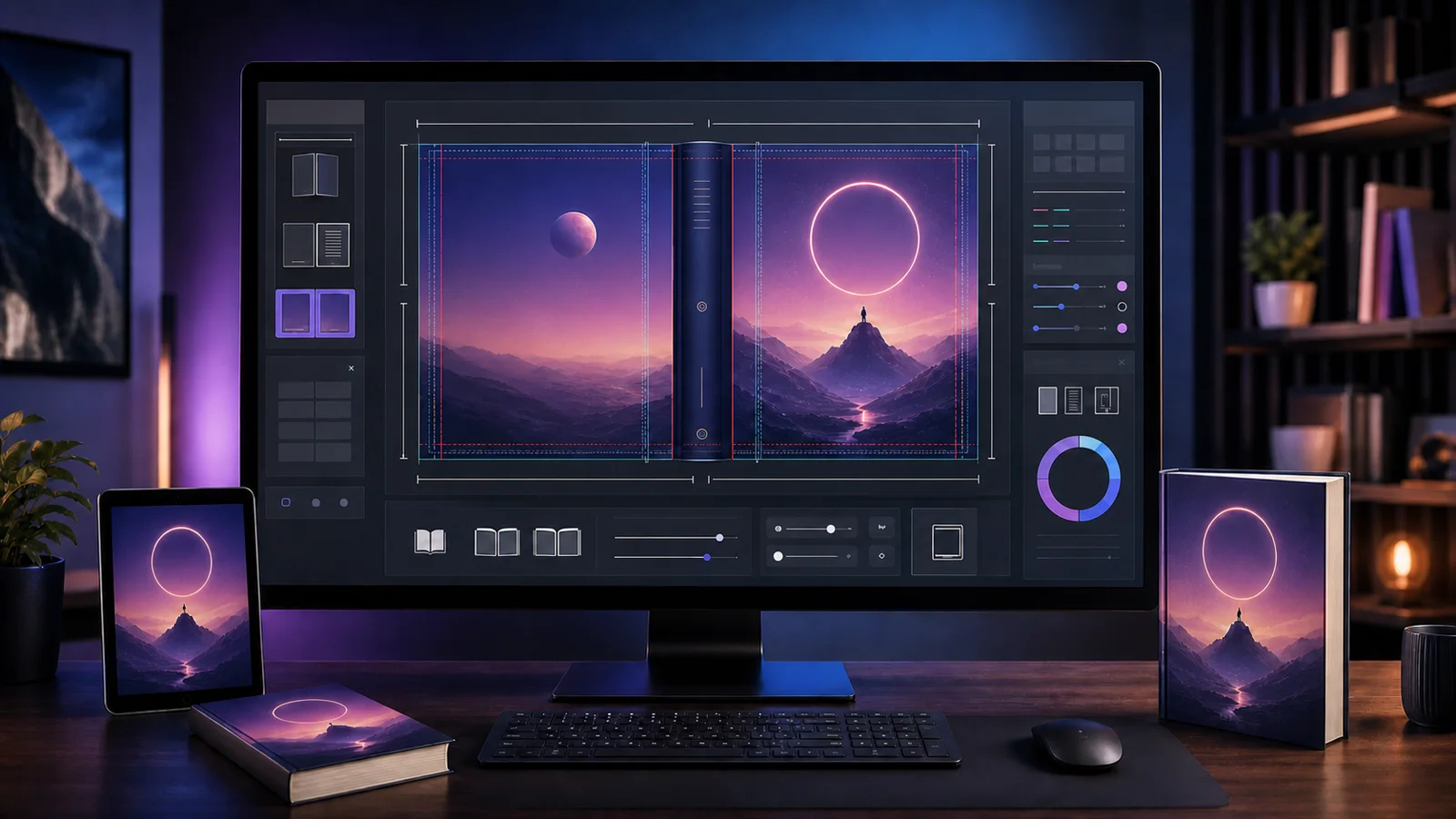
An Amazon KDP cover is not defined by one universal measurement. The correct KDP cover size depends on the book format, trim size, final page count, paper type, bleed setting, spine width, front and back panel dimensions, and export resolution. Change one of those inputs and the production canvas may need to change with it.
Using the wrong measurements can produce upload errors, off-center spine text, artwork trimmed in an unexpected place, a back cover that shifts toward the spine, low-resolution warnings, or a rejected file. The safest workflow is to finalize the interior, choose the exact publishing format, calculate the layout from those specifications, and review the exported file before uploading it.
This guide explains Kindle image size, paperback book cover size, hardcover differences, bleed, resolution, and how a book spine width calculator turns publishing specifications into a usable design canvas. For a quick overview of related measurements, see the book cover size guide.
What Size Should an Amazon KDP Cover Be?
There is no single correct size for every KDP cover because Kindle ebooks, paperbacks, and hardcovers are different products.
Kindle ebook covers
A Kindle ebook cover is a portrait front-cover image. It does not need a physical spine, back cover, trim bleed, fold guides, or barcode area. Its dimensions are measured in pixels because the result is displayed on screens rather than cut from a printed sheet.
Paperback covers
A paperback production file is normally one complete wraparound layout: back cover on the left, spine in the center, and front cover on the right. Its total width depends on two trim-width panels plus the calculated spine and outer bleed. Its height is the trim height plus top and bottom bleed.
Hardcover covers
A case-laminate hardcover also uses a full wrap, but its template includes hardcover-specific geometry. Board areas, hinges, wrap allowances, safe zones, and margins differ from paperback production. A paperback canvas should never be treated as a hardcover template.
| Format | Front Cover | Spine | Back Cover | Bleed | Page Count Affects Size | Typical Export |
|---|---|---|---|---|---|---|
| Kindle ebook | Yes | No | No | No print bleed | No | High-resolution RGB JPEG |
| Paperback | Yes | Yes | Yes | Usually for edge-to-edge art | Yes | Full-wrap print-ready PDF |
| Hardcover | Yes | Yes | Yes | Uses format-specific wrap areas | Yes | Hardcover full-wrap PDF |
Recommended Kindle Cover Image Size
A widely used recommended Kindle cover size is 1,600 pixels wide by 2,560 pixels high, which is approximately a 1.6:1 height-to-width ratio. This is a recommendation rather than a rule that every title must use one exact image size. Always verify Amazon KDP's current image requirements before uploading.
The Kindle cover generator uses a portrait canvas designed for digital cover artwork. A strong Kindle cover also needs to remain understandable as a small mobile thumbnail. The title should be readable, the focal point should be clear, and fine decorative details should not carry the entire concept.
JPEG is generally practical for photographic or richly illustrated ebook art because it balances quality and file size. PNG can preserve hard edges and transparency during a working process, but the final publishing workflow may call for a flattened JPEG. Use RGB color for a screen-delivered cover, export at high quality, and inspect the file for compression artifacts around typography, gradients, and sharp edges.
File size matters, but aggressive compression is not a substitute for a properly sized image. Keep a high-resolution master. Do not enlarge a small graphic and assume the new pixel count creates detail. Most importantly, remember that ebook covers are front-only: adding a spine or back cover to the Kindle image would create the wrong composition.
Common Paperback Book Cover Sizes
Popular paperback trim sizes include:
- 5 × 8 inches
- 5.25 × 8 inches
- 5.5 × 8.5 inches
- 6 × 9 inches
- 7 × 10 inches
- 8.5 × 11 inches
Trim size describes the finished interior page after manufacturing, not the complete cover file. A 6 × 9-inch paperback does not use a 6 × 9-inch production PDF. Its full cover must include a 6-inch back panel, the calculated spine, a 6-inch front panel, and the required bleed around the outside edges.
Different genres and content types favor different trim sizes. A compact novel may use 5 × 8 or 5.25 × 8, general fiction and nonfiction often use 6 × 9, and workbooks or technical material may need a larger page. Choose trim size for the reading experience and interior layout before finalizing the cover.
How to Calculate the Full Paperback Cover Width
At a conceptual level, the calculation is:
Full cover width = back cover width + spine width + front cover width + bleed
Full cover height = trim height + top bleed + bottom bleed
For a 6 × 9-inch paperback, begin with a 6-inch back panel and 6-inch front panel. Place the calculated spine between them, then add the required outside bleed. The exact result cannot be completed until page count and paper type are known because both determine the spine.
Cover Studio AI's current paperback logic uses the selected trim dimensions, calculates spine width from the final page count and configured paper specification, and applies the format's outer margins. It rounds the resulting production dimensions for a stable canvas. This is why one spine measurement should not be copied across different books—or even across two editions of the same book after pagination changes.
Use the paperback cover calculator to understand the inputs, then create a paperback cover project when you are ready to build the layout.
How a Book Spine Width Calculator Works
A spine width calculator, sometimes called a book spine width calculator or KDP spine calculator, converts production inputs into the narrow center panel between the back and front covers. Depending on the format, it generally needs:
- Final page count
- Paper or interior type
- Binding type
- Trim size
- The current production specification
Page count and paper affect the thickness of the bound interior. Binding determines which production model applies. Trim size positions the panels even when it does not directly change paper thickness.
Even a small spine-width error can shift the entire wrap. Front-cover artwork may move away from the intended trim, spine text can look off-center, back-cover content can drift toward a fold, and important text can end up too close to manufacturing boundaries. A sufficiently incorrect canvas may fail validation altogether.
Calculate your book's spine width automatically with Cover Studio AI instead of manually measuring the full cover layout.
Do not calculate the cover while the manuscript is still changing. A revised font, margin, chapter break, or illustration can alter pagination. Update the cover project whenever the final page count changes.
Paperback Cover Size Example
Consider a fictional 200-page paperback with a 6 × 9-inch trim, a selected paper type, and bleed enabled. This example deliberately avoids a fixed spine result because that number must come from the active paper and format specification.
When those settings are entered, Cover Studio AI:
- Establishes a 6 × 9-inch front-cover area.
- Establishes a matching back-cover area.
- Uses the 200-page count and selected paper to calculate the spine width.
- Combines the panels and production margins into the full canvas size.
- Displays the bleed region beyond the trim boundaries.
- Displays safe zones for titles, author information, and back-cover copy.
- Identifies the barcode-safe area so important content stays clear.
The editor then positions the back, spine, and front panels within one coordinated document. If the page count changes from 200, recalculating the project updates the geometry rather than stretching the old file.
What Is Bleed on a Book Cover?
Bleed is extra artwork extending beyond the final cut edge. Printing and trimming involve small manufacturing tolerances; if a background stops exactly at the trim line, a slight shift can leave an unintended white edge. Extending an image or color through the bleed provides room for the cover to be trimmed cleanly.
Bleed does not mean important content should move outward. Titles, author names, logos, and essential imagery belong inside safe zones, away from trim and fold boundaries. Edge-to-edge backgrounds should continue through bleed, while meaningful text remains comfortably inside the finished panel.
If a cover uses white margins by design, bleed decisions still need to match the publishing setup. Do not add or omit bleed based only on how the cover looks on a monitor; choose the correct project setting and follow the current template.
Book Cover Resolution and DPI
Print covers should generally be prepared around a 300 DPI production target. DPI describes how many image pixels are available per printed inch. An image placed six inches wide needs substantially more pixels than the same image placed two inches wide.
Increasing the document's DPI label or enlarging a small image does not manufacture real detail. Upscaling spreads or invents pixels; it cannot fully restore texture that was never captured. The result may look acceptable at normal monitor zoom yet print with soft edges, blocky details, halos, or blurry typography.
Evaluate pixel dimensions at the image's final physical placement. Cropping can also reduce usable pixels because part of the source falls outside the visible frame. Cover Studio AI inspects uploaded artwork and warns when its effective resolution may be insufficient for the selected cover placement. Its print workflow targets 300 DPI and carries quality warnings into production review.
For a deeper checklist, use the book cover resolution guide before committing to an export.
Hardcover Cover Dimensions
Hardcover cover dimensions must come from a hardcover-specific template and calculation. A case-laminate layout includes the front and back boards, spine, hinge regions, outer wrap or file margins, safe text areas, and the barcode region. These measurements are not interchangeable with paperback bleed and panel boundaries.
The spine still depends on page count and paper specification, but hardcover production adds its own allowances around the book structure. Artwork may cross hinges as part of a continuous background, while text and faces should stay out of areas where the wrap bends or disappears around an edge.
Start with the hardcover cover generator rather than resizing a paperback PDF. Reuse the visual concept if appropriate, but rebuild the composition against the correct hardcover geometry.
Common KDP Cover Size Mistakes
Avoid these frequent production errors:
- Using ebook dimensions for a paperback cover
- Forgetting the back cover on a print file
- Guessing the spine width
- Selecting the wrong trim size
- Ignoring bleed on edge-to-edge artwork
- Placing text outside safe zones
- Using low-resolution artwork
- Uploading the wrong file type
- Designing the cover before the final page count is known
- Reusing a cover after the interior page count changes
Also check that the cover corresponds to the correct edition. A cream-paper paperback, color paperback, and hardcover can require different calculations even when the title and trim size appear identical.
Do You Need a Separate Kindle and Paperback Cover?
Authors normally need a front-only ebook image, a full wraparound paperback cover, and a separate hardcover layout when offering all three formats. The same core artwork, colors, and typography can be reused, but each format needs its own canvas and composition.
An ebook image may crop the artwork vertically and enlarge the title for thumbnail reading. The paperback extends the concept across a spine and back panel. A hardcover adapts it again for hinges and wrap areas. Maintaining a shared visual system is efficient; uploading one identical file for every format is not.
How Cover Studio AI Simplifies KDP Cover Dimensions
Cover Studio AI brings calculation and design into one browser workspace. Authors can create Kindle, paperback, and hardcover projects; select supported trim sizes; enter page count and paper settings; and see the resulting format-aware canvas.
For print projects, automatic spine calculation establishes the center panel. Bleed and safe-zone guides identify manufacturing boundaries, while the editor coordinates the front, spine, and back cover and reserves a barcode-safe region. Image placement and scaling controls help compose artwork, and resolution checking flags sources that may not hold up at print size.
The workflow supports print-ready PDF export, high-resolution Kindle image export, uploaded artwork, and AI-assisted design tools. The free Draft plan provides a starting option for authors who want to begin with their own artwork; compare the available workflows on the pricing page. The earlier article on Amazon KDP book cover tools can also help you decide which supporting design utilities fit your process.
Frequently Asked Questions
What size should a Kindle book cover be?
A commonly recommended Kindle image size is 1,600 × 2,560 pixels, approximately a 1.6:1 height-to-width ratio. Treat this as practical guidance and verify KDP's current requirements for your title.
How do I calculate book spine width?
Use the final page count, selected paper or interior type, and binding specification in a current book spine width calculator. Avoid estimating from another book.
Does page count affect cover size?
Yes for print. Page count changes spine width, which changes the total width of paperback and hardcover cover files. It does not add a spine to a Kindle ebook image.
What is the most common paperback trim size?
Six by nine inches is widely used for fiction and nonfiction, but the best trim depends on genre, interior design, word count, and reading experience.
Do KDP covers need bleed?
Print covers with artwork reaching the edge generally need the configured bleed area. Kindle ebook covers do not use print bleed.
What resolution should a KDP cover be?
Use high-resolution source artwork and target 300 DPI for print placement. For Kindle, use a high-quality portrait image that remains clear as a thumbnail.
Can I use the same cover for Kindle and paperback?
You can reuse the same visual identity and artwork, but the files require different dimensions. Kindle needs a front-only image; paperback needs a complete wrap.
Why did my KDP spine width change?
The page count, paper selection, binding format, or production specification likely changed. Recalculate after the interior is final.
Can Cover Studio AI calculate my full cover size?
Yes. It uses the selected format, trim, page count, paper setting, and production margins to calculate the canvas and spine for supported projects.
Do I need a back cover for Kindle?
No. A Kindle ebook cover is a front-only digital image. Back covers and spines belong to print editions.
Build the Correct KDP Cover Size
The correct KDP cover size begins with final book specifications, not a generic template. Confirm the format, trim, page count, paper, bleed, and image quality before exporting, and recalculate whenever the interior changes.
Stop guessing your KDP cover dimensions. Create your Kindle, paperback, or hardcover project in Cover Studio AI and let the platform calculate the cover size, spine width, bleed, and layout for you.