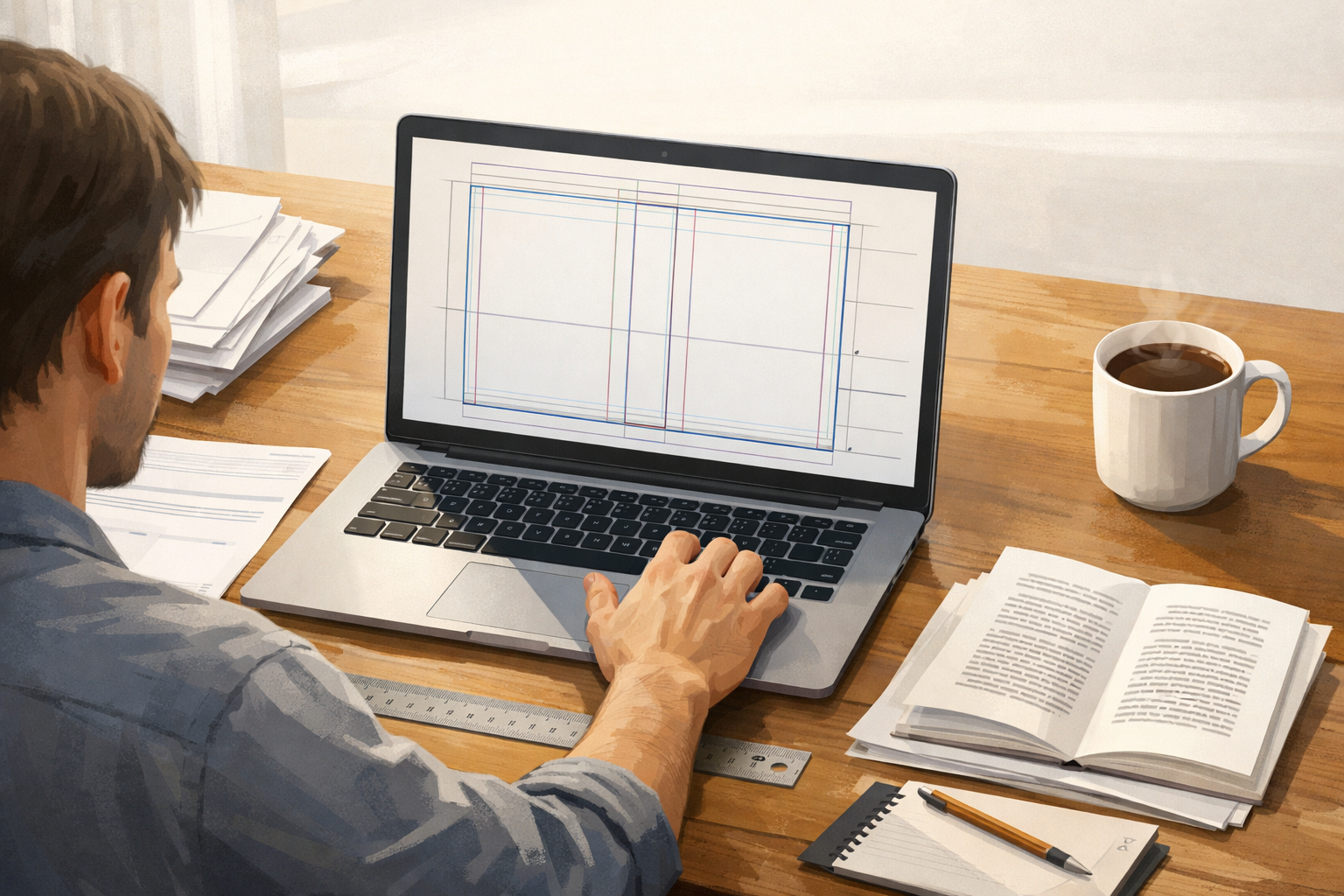
What people mean by "cover calc"
When authors search for "cover calc" they usually want a fast way to turn three or four simple inputs into the dimensions used for a full-wrap print cover: trim (width and height), page count, paper type (or thickness), and sometimes binding type. A reliable calculator outputs a spine width plus the finished full-wrap width and height (including bleed), and often produces a downloadable template.
What a good cover calculator does — and what it doesn’t
- Does compute spine width from page count and paper thickness supplied by the printer or the tool.
- Does return full-wrap dimensions (back + spine + front) and usually include bleed and safe zones.
- Does often produce a template PDF you can open in a design tool.
- Doesn’t design your cover or guarantee your artwork fits safe areas or meets resolution and color-profile requirements — those checks are a separate step.
- Doesn’t replace the printer’s own rules. Always prefer the printer’s published specs when available (Amazon KDP, Ingram, other POD services).
Required inputs (quick checklist)
- Trim size (width × height) in the units the printer uses — usually inches or millimetres.
- Final page count (PDF page count for the interior). Round to the actual pages the printer will see.
- Paper type or weight (this determines the per-page thickness the calculator uses).
- Binding type — perfect-bound paperback, casebound hardcover, or other formats may change how spine thickness is calculated.
- Bleed requirement (printers usually specify 0.125 in / 3 mm or similar).
Simple formulas you can use to verify a calculator
Always check a calculator by hand with the same inputs. Use these symbolic formulas so you understand what the tool should be doing.
- Spine width = page_count × thickness_per_page
(where thickness_per_page comes from the printer’s spec sheet — not the tool) - Full-wrap width = front_trim_width + back_trim_width + spine_width + (bleed_left + bleed_right)
For most paperback templates the front and back trim widths are the same: 2 × trim_width + spine + total_bleed - Full-wrap height = trim_height + (bleed_top + bleed_bottom)
Bleed is typically equal at top and bottom; follow your printer’s specification. - Safe margins = keep important text/artwork at least the printer’s safe margin distance from the trim edges and the spine.
Illustrative example (labelled hypothetical — always verify with your printer)
Imagine a 6" × 9" trim, 250 pages, and a bleed requirement of 0.125" on all sides. If your printer publishes a thickness_per_page of 0.0025" (hypothetical example only), the math would look like this:
- Spine = 250 × 0.0025 = 0.625"
- Full-wrap width = 6 (front) + 6 (back) + 0.625 (spine) + 2 × 0.125 (bleed left and right) = 12.875"
- Full-wrap height = 9 + 2 × 0.125 = 9.25"
Again: the numbers above are an example only. Use the printer's published thickness per page or the official calculator values for a reliable result.
How to verify a calculator’s output (five practical checks)
- Confirm units: If the tool returns dimensions in millimetres but your design software is set to inches, you will get the wrong file. Convert or change units consistently.
- Compare spine width: Recompute the spine using the simple formula (page_count × thickness_per_page). If the calculator’s spine differs more than a small rounding error, investigate.
- Check bleed and safe zones: Open the template and visually confirm that the bleed area and safe margins match the printer’s published numbers.
- Open the downloadable template: Inspect layers, guides, and whether the template uses the same units and trim as the calculator returned.
- Test with a single-page change: Add or remove two interior pages and re-run the calculator; spine should change predictably by (2 × thickness_per_page).
Common mistakes and how to avoid them
- Wrong page count: Using an outdated layout or excluding front/back matter will make the spine wrong. Use the final interior PDF page count.
- Using a generic paper thickness: Different paper grades (cream vs white, 50# vs 70#) have different thicknesses. When in doubt, use the printer’s spec.
- Inconsistent units: Mixing mm and inches is a frequent cause of mis-sized templates.
- Assuming fixed spine art area: On very thin books the visible spine area is tiny — check that your typography still reads at spine width. You may need to move title text to the front if the spine is too narrow.
- Ignoring cover image resolution and colour profile: Calculators handle dimensions, not image DPI or CMYK conversion — you'll still need to check resolution and export colour correctly.
A practical, fail-safe workflow to use any "cover calc" safely
- Get final interior PDF and page count: Export your interior in the same paper size and pagination you will send to the printer.
- Confirm paper type and binding: Find the per-page thickness in the printer’s spec or use the printer’s calculator — don’t guess.
- Run the calculator and download the template: If you used an online cover calculator, download its PDF/PSB template and open it in your design tool.
- Verify the math by hand: Use the simple formulas above to check the spine and full-wrap width. If numbers don’t match, re-check inputs and units.
- Design inside safe areas and respect bleed: Keep text and critical elements inside the safe margins the template provides.
- Preflight the file: Check image resolution, CMYK/RGB settings, embedded fonts, and barcode placement before export. Cover Studio AI’s preflight checklist can help with these final checks.
- Export and proof with the printer: Produce the final PDF according to the printer’s spec and use any preview or proofing tools they provide before ordering a print run.
When to distrust a free online calculator
Free tools are helpful for quick estimates, but you should be cautious if a calculator:
- Doesn’t specify the per-page thickness used in its spine calculation.
- Gives results with no option to download a template or change bleed and margin settings.
- Forces oddly rounded spine widths that don't match the printer's required precision.
How Cover Studio AI fits into the workflow
If you already use a cover calculator to get dimensions and a template, Cover Studio AI helps you turn that template into a finished cover and run final checks. For details about what a print-cover calculator does and how templates work, see our companion article: Print Cover Calculator and Templates: A Practical Guide for Self-Publishing Authors. For step-by-step KDP calculations and printable templates, consult these resources:
- How to Calculate Book Cover Size for Amazon KDP: Paperback and Hardcover Guide — detailed formulas and KDP-ready steps.
- Amazon KDP Cover Sizes and Spine Width Calculator Guide — explanation of how trim, page count and paper determine spine width.
Troubleshooting: common rejection reasons and fixes
- Trim mismatch: Re-export the cover using the calculator’s template and make sure the trim size matches the interior.
- Spine text unreadable or cut off: Move spine text inside the safe margin or place title on the front if the spine is narrower than the minimum readable width.
- Low image resolution: Replace low-DPI images with 300 DPI (at final printed size) versions before export.
- Wrong colour profile: Convert to the printer’s recommended profile (often CMYK) and inspect colours in a proof.
Quick reference: what to copy into a calculator
- Trim width (e.g. 6 in) — front/back panel width.
- Trim height (e.g. 9 in).
- Interior page count — final exported PDF page count.
- Paper choice — choose the exact option (cream, white, weight) your printer lists.
- Binding type — paperback vs hardcover.
- Bleed — use the printer’s required bleed amount.
Final notes and links to learn more
"Cover calc" is a useful search phrase because calculators save time — but they must be used with care. A quick verification by hand, a reliable template, and a preflight check will usually prevent the most common publishing errors.
For more practical guidance on converting calculator output into a finished KDP-ready cover, see these Cover Studio AI articles:
- Print Cover Calculator and Templates: A Practical Guide for Self-Publishing Authors — complementary, deeper coverage of templates and workflows.
- How to Calculate Book Cover Size for Amazon KDP: Paperback and Hardcover Guide — step-by-step KDP calculations.
- Amazon KDP Cover Sizes and Spine Width Calculator Guide — spine rules and verified formulas for KDP.
If you want one concrete next step: run your inputs through a reliable calculator, then open the template in your editor and verify the spine calculation by hand using the formula above. That small habit stops most cover production surprises before they happen.