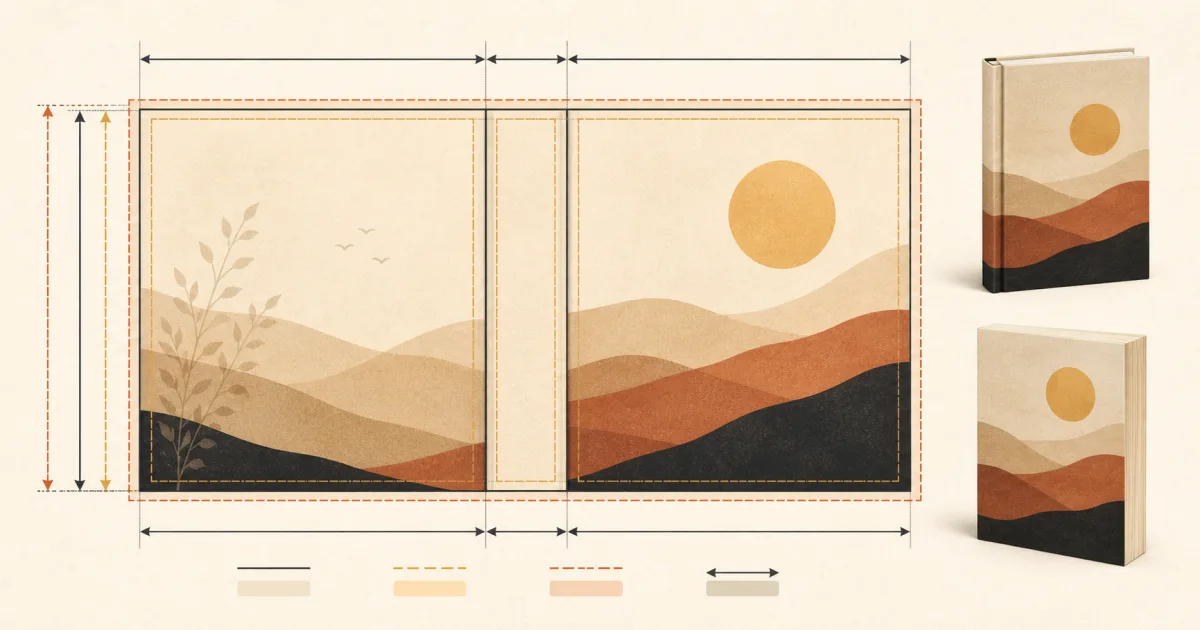
A KDP cover calculator turns your book's production details into the full book cover dimensions required for upload to Amazon KDP. That distinction matters: the trim size describes one finished page, not the complete cover file. A print cover must span the back cover, spine, and front cover, with additional room for bleed and format-specific manufacturing areas.
The calculation can feel confusing because one change to the interior can change the cover. A 6 × 9-inch book is not uploaded as a 6 × 9-inch print cover. Its final canvas is wider than two trim-size panels, and its exact width depends on the spine. If you want to move from specifications to a format-aware design, start a cover project with Cover Studio AI after your manuscript pagination is final.
Quick answer For a print edition, select the exact format, trim size, page count, paper type, and bleed setting. Use a current Amazon template or book cover calculator to determine the full-wrap width, height, and spine. Do not use trim size alone or reuse measurements from another edition.
What Is a KDP Cover Calculator?
A KDP cover calculator is a production tool that converts book specifications into the dimensions of a complete cover file. For paperback, the result usually describes a single flat wrap: back cover on the left, spine in the center, and front cover on the right. A KDP hardcover calculator must also account for the case-binding geometry used by that format.
A reliable calculator typically asks for:
- Trim size: the finished width and height of one interior page.
- Page count: the final number of pages in the uploaded interior file.
- Format: paperback or hardcover, because their construction differs.
- Paper type: paper thickness affects the width of the text block and spine.
- Bleed: extra artwork beyond trim that allows clean edge-to-edge cutting.
- Binding specifications: format-specific allowances such as hardcover hinges and wraps.
The output may include total canvas width and height, spine width, panel boundaries, trim lines, safe areas, and a barcode region. Some tools also produce a template that can be placed over the artwork while designing. The companion guide to KDP cover templates explains how to read those guides and remove them before export.
Treat any Amazon cover calculator as an edition-specific tool. A result is only accurate for the inputs used to create it. Changing the manuscript, paper, trim size, or binding means the cover should be calculated again.
Why Page Count Changes Your Cover Size
Every printed page contributes a small amount of thickness to the book block. More pages create a wider spine; fewer pages create a narrower one. Because the spine sits between the back and front panels, its width changes the total width of the full cover.
Imagine two paperbacks with the same 6 × 9-inch trim size. One has 120 pages and the other has 350 pages. Their front and back panels have the same finished dimensions, but the 350-page book needs a substantially wider spine. Therefore, the two books require different cover canvases and different templates.
Paper choice matters too. Two books with the same trim size and page count can use different paper stocks, producing different spine measurements. This is why estimating from a book on your shelf or copying another project's dimensions is unreliable.
Finalize the interior before locking the cover geometry. Changes to font size, margins, paragraph spacing, chapter starts, images, or trim size can repaginate the manuscript. If that first production choice is not settled, compare formats in the book trim size guide. After uploading the final interior, use its accepted page count to calculate the cover. For a deeper explanation of how the variables interact, read the book cover dimensions complete guide.
How KDP Cover Dimensions Are Calculated
At a conceptual level, the full width of a paperback cover is:
Back cover + spine + front cover + outer bleed
The full height is based on the trim height plus the required bleed at the top and bottom. This describes the logic, not a universal manufacturing formula. Exact allowances depend on the selected format and current production specifications.
Start with the trim-size panels
The front and back each correspond to the book's trim size. For a 6 × 9-inch book, each finished panel is 6 inches wide and 9 inches high. Placed side by side, those panels already use 12 inches of width—but the spine and bleed are still missing.
This is the most common source of confusion about the dimensions for a book cover. Trim size is a page specification. It is not the final document size for a print wrap.
Add the KDP spine width
The KDP spine width is calculated from the final page count, paper type, and binding rules. It sits between the panels, so every change in spine width changes the overall canvas width and shifts the panel boundaries.
Do not hard-code a formula into a reusable design file. Amazon can update specifications, and different print options use different rules. Use the current KDP template process or a calculator with verified inputs for the final production measurement. The KDP cover sizes and spine width calculator guide provides a detailed workflow without treating one formula as permanent.
Add bleed and respect safe areas
Bleed extends background color or imagery beyond trim so normal cutting variation does not reveal white edges. It is sacrificial space, not room for essential content. The title, author name, review quotes, logos, faces, and other important elements belong inside the safe areas shown by the current template.
A calculator may report the full canvas, but correct dimensions alone do not guarantee a printable design. Your background must reach through bleed, important content must remain clear of trim and folds, and the back cover must accommodate the barcode. Review the common book cover mistakes before exporting.
Check the book cover ratio
The book cover ratio is the proportional relationship between width and height. For a front-only ebook image, one ratio can describe the entire file. For print, the full-wrap ratio changes with spine width, which means it changes with page count.
Do not force a finished composition into a new ratio by stretching it. Maintain a high-resolution master, reposition artwork for each canvas, and verify faces, typography, and focal points against the new guides.
Paperback vs Hardcover Cover Dimensions
Paperback and hardcover editions need separate calculations. They may share a trim size and visual concept, but their physical construction is different.
A paperback cover size usually describes a flexible full wrap with front and back panels, a calculated spine, and outer bleed. Its guides identify trim, safe areas, and the barcode region.
A hardcover cover size for a case-laminate edition includes additional binding areas. The template can contain board dimensions, hinges beside the spine, and wrap allowances around the outer edges. Important text and imagery must stay away from hinges and wrapped edges, where they may bend or disappear.
That is why a paperback cover should not simply be enlarged or compressed for hardcover. Use a dedicated KDP hardcover calculator or current hardcover template, then adapt the design intelligently. Reposition the title and back-cover copy, recenter the spine, and extend the background into the proper regions. The Amazon KDP book cover templates guide walks through the production differences in more detail.
Kindle Ebook Covers Need Only the Front
A Kindle ebook generally uses a front-cover image, not a print wrap. There is no physical back cover, spine, trim line, barcode area, or print bleed. Uploading a paperback spread as an ebook cover would make the front appear as only one part of a wide image.
Kindle artwork still needs suitable pixel dimensions, resolution, file format, and proportions. Platform requirements can change, so confirm the current KDP guidance when exporting. More importantly, test the design at thumbnail size. Fine subtitles and low-contrast details that look good on a large monitor may disappear in search results.
You can reuse the same artwork and typography system across editions, but create a dedicated front-only composition for Kindle. The book cover font guide for Amazon KDP explains how to keep the title readable at both thumbnail and print sizes.
A Practical KDP Cover Calculation Workflow
Use this sequence to avoid rebuilding the cover late in production:
- Choose the final format and trim size. Treat paperback, hardcover, and Kindle as separate deliverables.
- Finish the interior layout. Resolve fonts, margins, images, front matter, and chapter spacing.
- Upload or export the final interior. Record the page count KDP will use for that edition.
- Confirm paper and bleed settings. These must match the settings selected during book setup.
- Calculate or download the current template. Check total dimensions, spine, panels, safe areas, and binding regions.
- Build the design on that exact canvas. Extend backgrounds through bleed and protect important content.
- Export and inspect the production file. Hide template guides and confirm the PDF page size.
- Use the KDP previewer and order a proof. Automated checks and a physical copy catch different problems.
Keep the template or calculator result with the source file and name it for the edition. A filename that includes format, trim, page count, and revision reduces the chance of uploading the paperback file to the hardcover record.
Common Cover Calculation Mistakes
Treating trim size as the complete cover size
Trim describes one finished page. A print cover must also include the second panel, spine, bleed, and any binding-specific areas.
Designing before the page count is final
Late pagination changes alter the spine. Finish the interior, then calculate the cover from the final accepted page count.
Forgetting bleed
Artwork that stops at trim can leave white slivers after cutting. Extend backgrounds through the full bleed region while keeping essential details inside safe areas.
Putting important text too close to trim lines
Normal manufacturing variation can make edge-hugging text look uneven or clip it. Give titles, author names, back-cover copy, and logos comfortable clearance.
Using paperback dimensions for hardcover
Hardcover bindings need their own hinges, boards, spine, and wrap allowances. Recalculate the edition rather than scaling the paperback file.
Misplacing spine text
Spine text must be centered within the actual spine-safe region, not the overall canvas. Very thin books may not permit spine text. Always follow the current template.
How Cover Studio AI Helps
Cover Studio AI gives self-published authors a focused place to create Kindle, paperback, and hardcover designs while keeping the creative work connected to the chosen book format. Start with accurate edition details, then build the visual hierarchy around the front, spine, and back rather than retrofitting a front cover onto an improvised canvas.
The safest workflow still begins with a final manuscript and verified production inputs. Cover software cannot make an estimated page count final or override Amazon's current manufacturing requirements. It can, however, make the handoff from calculated dimensions to design more organized. If you are comparing possible workflows, the guide to the best tools for Amazon KDP book covers explains where specialized and general-purpose tools fit.
When your format, trim size, page count, and paper choice are settled, create your cover with Cover Studio AI and keep each edition tied to its own measurements.
Frequently Asked Questions
How do I calculate my KDP book cover size?
Choose the exact format, trim size, final page count, paper type, and bleed setting. Enter them in a current KDP cover calculator or template generator, then use the resulting full width, height, spine, and guide areas for that edition.
Is a 6 × 9 book cover actually 6 × 9?
Only one trimmed panel is 6 × 9 inches. A print cover is wider because it contains the back panel, spine, front panel, and bleed. Its exact total width depends on the spine and format.
Does page count affect KDP cover size?
Yes. Page count affects spine width, and spine width is part of the full cover width. Changing pagination usually requires a newly calculated template.
How do I calculate KDP spine width?
Use the final page count, selected paper type, and binding format with Amazon's current specifications or a verified calculator. Do not estimate from another book or rely on a fixed formula saved from an older project.
Are paperback and hardcover cover sizes the same?
No. Hardcover templates include binding-specific areas such as hinges, boards, and outer wraps. Calculate paperback and hardcover editions separately even when they share a trim size.
What size should a Kindle ebook cover be?
A Kindle ebook needs a front-only portrait image rather than a full print wrap. Check Amazon KDP's current pixel, ratio, and file-format guidance before export, and test the design at small thumbnail size.
Calculate First, Then Design
Correct cover sizing begins with the edition, not the artwork. Finalize the interior, verify the page count and paper choice, calculate the exact full wrap, and design within its bleed and safe-area guides. Repeat that process for every paperback or hardcover edition instead of resizing a previous file.
Once those inputs are stable, use Cover Studio AI to turn the measurements into a professional book cover. You will spend less time repairing avoidable geometry problems and more time refining the cover readers will actually see.