Short answer
There isn’t a single “best” AI image generator for Amazon KDP authors. The right choice depends on your priorities: the visual style you need, whether you must produce print‑quality files, licensing terms for commercial use, your budget, and how the generator fits into a cover‑production workflow. This article explains the tradeoffs, gives a short list of widely used options, and provides a step‑by‑step workflow and prompts so you can get a production‑ready cover faster.
What matters for KDP covers (the decision checklist)
When evaluating any AI image generator for Amazon KDP covers, rate each candidate on these practical criteria:
- Commercial licensing: Can you legally sell covers made with the generator? Read current terms and confirm commercial use and any attribution requirements.
- Output resolution and upscaling: Print covers need high resolution (300 DPI at your final cover dimensions). Does the tool produce large images or integrate with reliable upscalers?
- Style control: How much control do you have over composition, lighting, and figure rendering? Some engines excel at stylized art, others at photorealism.
- Inpainting and mask editing: Can you edit parts of the image (replace background, adjust poses) without re‑generating everything?
- Consistency and batch generation: Can you produce multiple images with a consistent look (useful for series covers)?
- Local vs cloud workflow: Do you need a hosted app for convenience or a local/hosted model for privacy and customization?
- Integration with cover layout tools: How easily does the generated artwork move into a cover layout tool (layers, transparent backgrounds, large exports)? Tools like Cover Studio AI support finishing, typography, and KDP export.
- Cost and speed: Consider how many iterations you’ll run—some services charge per image or per GPU minute.
How to translate KDP technical needs into generator requirements
Amazon KDP has specific needs that affect which generator and post‑processing steps you’ll use:
- Print resolution: For paperbacks and hardcovers target 300 DPI at the final print size. If your generator returns 1024×1024 or similar, you’ll need reliable upscaling and careful noise control.
- Color and color profile: KDP and print providers often convert sRGB to CMYK. Produce your artwork in sRGB but check how your layout tool exports PDFs for print. Use the KDP preflight checklist before upload.
- Full‑wrap requirements: If you’re creating a full‑wrap (back + spine + front), generate artwork that can be scaled and extended to fit the template without losing important elements near the spine or bleed.
- Thumbnail legibility: Covers must read well at thumbnail size (Kindle store, Amazon grids). Make compositional choices so the focal point and title area remain clear when small.
See Cover Studio AI resources for cover layout and KDP export guidance: Amazon KDP Cover Preflight Checklist, Amazon Paperback Cover Designer, and AI Book Cover Creator for Amazon KDP.
Common generator types and what they’re good at
- Hosted text‑to‑image services (cloud APIs): Easy to use, managed infrastructure, usually include upscaling and inpainting. Good for authors who prefer a simple, web-based workflow.
- Community‑driven models (Stable Diffusion family and forks): Extremely flexible, can be run locally or in hosted offerings. Many checkpoints and fine‑tuned models exist for specific styles. Requires more setup but gives strong control and customization for series consistency.
- Stylized generators (creative/artist-driven): Tools that prioritize distinct, evocative art (often used for fantasy and lit‑fic). They can produce eye‑catching covers but may struggle with photorealistic elements or consistent character poses.
- Commercial tools with editorial control (Adobe, Runway, etc.): Integrated toolsets for inpainting, vector exports, and licensing clarity. These can simplify rights management and layout steps.
Shortlist: commonly used options (what to test)
Rather than a single “best” generator, authors often test two or three options and pick the one that fits their project. Candidate types to try:
- Commercial cloud services — convenient, often include rights guidance and high‑quality upscalers. Good starting point if you want a managed workflow.
- Midjourney‑style services — known for distinctive, artistic imagery. Useful for genre fiction where a stylized look is desirable; test thumbnail readability.
- Stable Diffusion variants (local or hosted) — best for customization, series consistency, and the option to run locally for privacy and training. You’ll need to manage upscaling and postwork.
- Adobe/enterprise tools — often include polished UX for inpainting and consistent color workflows; good for authors who already use Adobe tools for layout and typography.
Note: Always confirm the generator’s current commercial terms and any model‑specific restrictions before using images on a product page.
Practical, KDP‑focused workflow (step‑by‑step)
-
Define the cover brief.
Decide genre, target thumbnail composition (what must be visible at small sizes), and the mood/colour palette. Create a short brief: e.g., “Dark urban fantasy, lone heroine on rain‑slick rooftop, neon palette, high contrast, title area upper third.”
-
Choose one or two generators to test.
Pick one generator that prioritizes style and one that prioritizes control (for example, a stylized hosted service plus a Stable Diffusion workflow). Run a small number of test prompts first.
-
Prompt and composition: start with tight composition specs.
Include framing directions: “tight mid‑shot, subject slightly off‑center to the left, negative space on the right for title and byline; clear sky background for high contrast.” Aim for a composition that leaves a title-safe area.
-
Use inpainting to refine.
Rather than re‑generate the whole image, mask and rework problem areas: faces, hands, or background elements that conflict with typography. This saves iterations and keeps good parts intact.
-
Upscale and denoise for print.
Use a reliable upscaler for print sizes (2x–8x depending on starting resolution). Inspect for artifacts. If you generate at high native resolution, you reduce this step.
-
Move art into a cover layout tool.
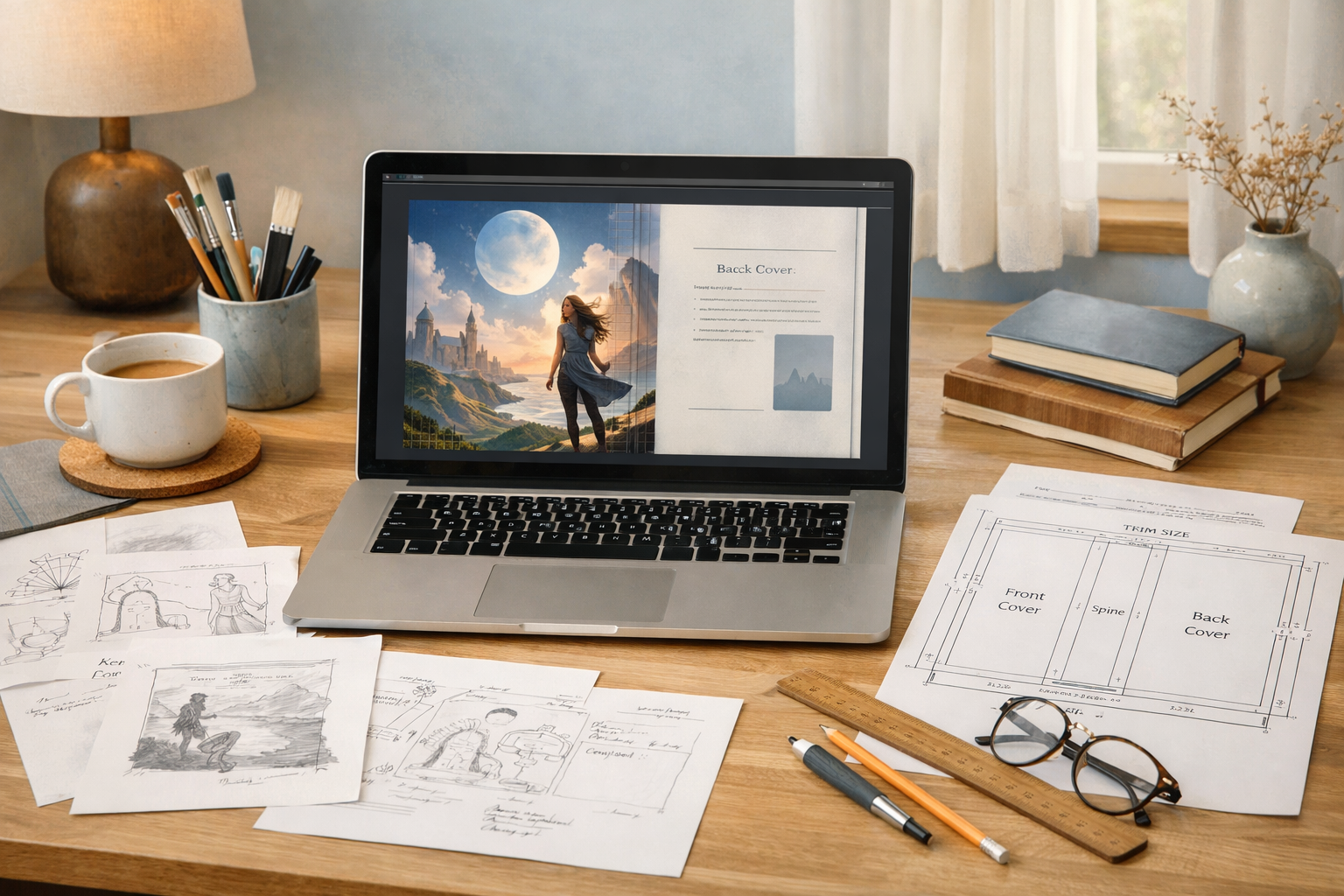
Import the image into your cover layout tool (for example, Cover Studio AI’s paperback designer or coversheet tools) and place safe margins, spine elements, barcode area, and typography. See Amazon Paperback Cover Designer and Coversheet Generator for layout workflows.
-
Preflight check.
Run a KDP preflight check before export: image DPI at final dimensions, bleed and safe areas, spine width calculations, color profile checks, and barcode placement. Use the Amazon KDP Cover Preflight Checklist.
-
Thumbnail test and feedback loop.
Export thumbnails and check visibility at 64×100–150×250 pixels. Get peer feedback or use thumbnail A/B testing where possible. Make small prompt or layout adjustments and repeat until the title reads clearly and the focal image remains visible.
Prompt examples tuned for KDP covers
Below are short, adaptable prompt templates. Replace bracketed items and refine with style descriptors and camera/composition language.
-
Fantasy novel (stylized):
"[Female protagonist] standing on cliff edge, dramatic storm sky, sweeping cape, cinematic lighting, painterly — high contrast, balanced composition with left negative space for title, 3/4 view, shallow depth of field, detailed face, dramatic color grading."
-
Thriller / crime (photorealistic):
"Noir city alley at night, wet pavement reflections, lone figure in trench coat backlit by neon, tight mid‑shot, moody contrast, realistic textures, space on top third for bold title, high resolution, photorealistic."
-
Nonfiction (clean graphic + iconography):
"Minimalist flat illustration, bold abstract shapes, single accent color (#[hex]), large central symbol representing [topic], clean negative space for title and subtitle, vector‑like clarity, high contrast."
When composing prompts, always include composition clues (angle, crop, negative space) and a reminder to leave room for typography.
Common pitfalls and how to avoid them
- Low native resolution: Avoid relying only on small generator outputs for print. Either generate at higher sizes or plan for careful upscaling.
- Unclear thumbnails: Test at thumbnail size early. If the hero becomes a blob, simplify the composition and increase contrast between subject and background.
- Licensing surprises: Don’t assume images are free for commercial use. Read the generator’s current terms, and retain records of license acceptance.
- Overly busy art near spine: Keep critical subject matter and text away from the spine and bleed areas. Use a template to mark safe zones during generation and layout.
- Inconsistent series look: If you need matching covers for a series, develop a style guide (palette, fonts, pose templates) and use the same prompts, negative prompts, or model checkpoints for every volume.
How to compare the shortlists objectively
Create a simple scoring grid for your project and test 3–5 images per tool. Score each image on:
- Thumbnail clarity (1–5)
- Print quality after upscaling (1–5)
- Ease of editing (1–5)
- Licensing confidence (1–5)
- Cost per usable image (estimate)
Tools that consistently score high across thumbnail clarity and print quality are usually the best fit for KDP covers.
When to use an AI image generator vs a human illustrator
AI generators are fast and cost‑effective for many covers, especially when you need multiple iterations, concept art, or stylized imagery at low cost. Hire a human illustrator when:
- You need bespoke character likenesses with legal releases.
- You require exacting, repeatable poses across many volumes and tight control of every detail.
- You prefer a truly original, trademarkable style where artist attribution and long‑term copyright clarity matter.
Putting it together with Cover Studio AI
Cover Studio AI is built to take artwork from concept to print: start with AI artwork, import into a cover layout template, add title and back cover copy, and run KDP export checks. If you’re using generated art, the typical sequence is: generate → inpaint/ upscale → import into cover layout → set spine and barcode → run preflight checks.
Useful related guides on Cover Studio AI:
- AI Book Cover Creator for Amazon KDP — workflow for turning AI art into a full KDP file.
- Amazon KDP Cover Preflight Checklist — final checks before upload.
- Best Tools for Creating and Optimizing Amazon KDP Book Covers — a complementary resource that covers layout and tooling.
Quick recommendation for most self‑publishing authors
If you’re unsure where to start: test one managed cloud generator (for speed and simplicity) and one Stable Diffusion‑based workflow (for control and consistency). Use the managed service to quickly produce concept art and the Stable Diffusion route to iterate on the best concept, especially if you need series consistency or local control. Always confirm licensing for commercial use, and run the KDP preflight checklist before upload.
Final checklist before you upload to KDP
- Confirm commercial license for the generated image and keep a record of terms.
- Ensure final artwork is 300 DPI (or meets the print requirements at your chosen size) and check for artifacts after upscaling.
- Test readability at thumbnail sizes and adjust composition or typography if needed.
- Place important elements away from spine, bleed, and barcode areas using a KDP template.
- Export using the correct cover layout and color/export settings from your cover tool, then run a final preflight check.
For layout, templates, and the preflight checklist see these Cover Studio AI guides: Amazon Paperback Cover Designer, Amazon KDP Cover Preflight Checklist, and How to Choose and Use a KDP Cover Template Generator.
Want hands‑on help?
If you’d like a faster route from AI concept to print‑ready file, follow the step‑by‑step guide in How to Create a Professional Amazon KDP Paperback Book Cover in 2026. Combine that with the AI cover creator workflow to streamline generation, layout, and export.
Closing thought
“Best” depends on your project. Prioritize generators that meet your print resolution needs, provide a clear commercial license, and fit the style and consistency requirements of your book or series. Use a two‑tool test (one for fast concepting, one for controlled production), integrate the image into a reliable cover layout and preflight process, and you’ll arrive at a cover that sells and passes KDP checks.