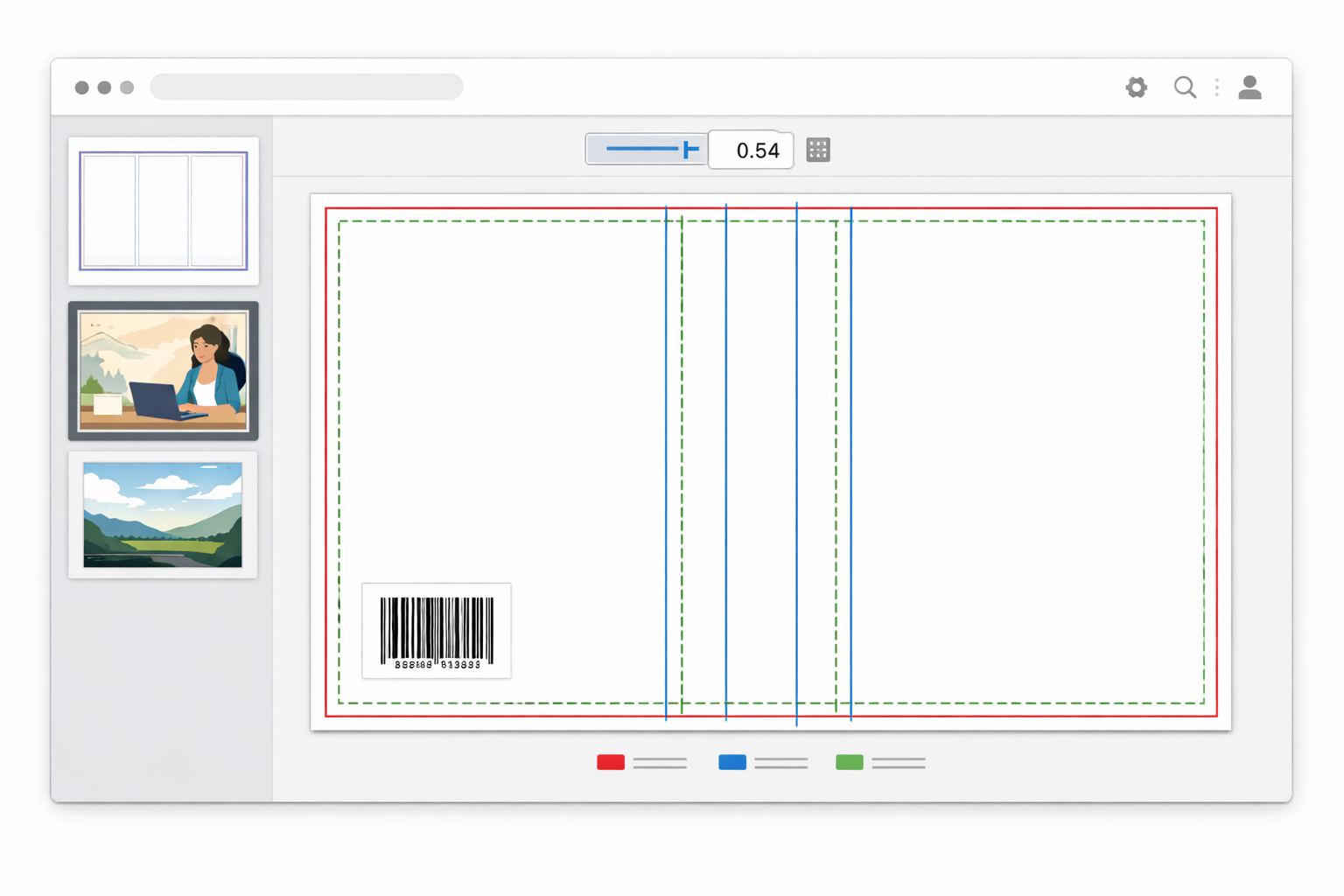
If you’re preparing a cover for Amazon KDP, the phrase “KDP cover template generator” probably sounds appealing: pick a trim size, paste your page count, click “generate,” and get a perfectly measured full‑wrap PDF. In practice, template generators vary in what they automate and how much manual cleanup you’ll need. This guide explains what a template generator really does, how to evaluate one, and a practical step‑by‑step workflow to turn a template into a production‑ready cover.
What a KDP cover template generator actually is
A KDP cover template generator is any tool that produces the measured canvas for a print or eBook cover. At minimum it places fronts, spines, and backs on a single full‑wrap canvas with the correct trim, bleed, and safe‑area guides. More advanced generators can:
- calculate spine width from page count and paper type;
- add barcode/ISBN zones to the back cover;
- export print‑ready PDFs with bleed and trim marks;
- offer editable templates for different genres and layouts;
- integrate artwork and typography so you can test thumbnails and preview covers at sale sizes.
Understanding which of these a product does — and how well — is the first step in choosing a generator that fits your workflow.
Types of template generators and when to use each
- Basic template calculators: Generate full‑wrap canvases from trim size and page count. Good for authors who use separate tools for design and need only precise measurements.
- Designer-friendly generators: Include layout grids, typography controls, and placeholders for blurb, author bio, and barcode. Best when you want to build the cover inside the same app.
- AI-assisted template creators: Combine template measurements with automated artwork generation and suggested layout options. Useful for fast concepting and thumbnail testing, but still require design judgement before export.
How to evaluate a KDP cover template generator (checklist)
When you’re comparing options, use this practical checklist. Each item determines whether a template will save time or create more work later.
- Accurate spine calculation: The generator should accept page count and paper type (e.g., cream vs. white) and produce the correct spine width for your chosen binding. If it doesn’t, you’ll get misaligned spines and KDP upload errors. For details on calculating sizes, see the guide to how to calculate KDP book cover size.
- Correct trim and bleed settings: Templates must include the correct full‑wrap dimensions and a bleed margin that meets KDP’s requirements. Use a tool that lets you preview safe areas and slugs.
- Editable, non-destructive layers: You should be able to swap artwork, move type, and adjust layout without flattening the measured template. This is essential for revisions and localization.
- Export formats KDP accepts: The generator should export print‑ready PDFs (ideally PDF/X), with CMYK support and 300 DPI artwork. See the preflight checklist for export requirements and common problems.
- Barcode placement: It should reserve a barcode area and let you insert either your own barcode or a placeholder for KDP to generate one at upload.
- Thumbnail previews: Covers must work at thumbnail sizes used by stores and ads. Good generators include thumbnail testing or export presets for social and store images. For promotion ideas, see Social SEO for authors.
- Multiple edition templates: If you plan Kindle, paperback, and hardcover editions, the tool should either provide separate templates or let you switch format while keeping core artwork and layout intact. Learn more in Kindle vs. paperback vs. hardcover.
- Licensing and assets: Verify commercial licensing for included art, fonts, and stock images so there are no surprises on sales or marketing funnels.
Step-by-step workflow for using a template generator (practical guide)
The following workflow turns a template into a publishable cover. It’s written for paperback full‑wraps but applies to most KDP formats.
1. Decide trim, paper, and page count first
Before you open a template, choose your trim size and set the manuscript page count and paper type. This data determines spine width and full‑wrap dimensions. If you need help choosing a trim, start with How to choose a book trim size or the book type size guide.
2. Generate the accurate canvas
Feed trim size, page count, and paper type into the template generator and create the full‑wrap canvas. Check that the output shows trim edges, bleed, and a clearly marked safe area for text and logos.
3. Place focal artwork and respect safe zones
Put your front cover focal point within the safe area. Don’t place important elements on the spine edges or within the bleed. If you’re using a wrapped background image, make sure critical details aren’t in the outer bleed where printing may trim them.
4. Typography and hierarchy
Use templates to position title, author, and subtitle. Maintain contrast and legibility at thumbnail sizes. If the tool supports it, test different font sizes and weights, and check for overset text on the spine — short titles work better on narrow spines.
5. Back cover layout and barcode
Arrange blurb, author bio, praise, and small back images. Reserve a clear barcode rectangle (usually lower right) and confirm the template’s barcode dimensions and quiet area match KDP’s guidance.
6. Proof in context and at thumbnail size
Export quick JPG or PNG thumbnails and view them in a simulated store listing. Does the title read at small sizes? Are faces or details legible? If your generator offers built‑in thumbnail previews, use them. If not, export and check manually.
7. Preflight and export
Before final export, run the checks: 300 DPI images, CMYK color (or KDP‑approved RGB workflow if you prefer), embedded fonts or outlined text if required by the generator, correct bleed, and a barcode placeholder. Use the Amazon KDP cover preflight checklist to validate the file before uploading.
8. Keep editable source files
Save layered source files (PSD, AI, or the tool’s native format) so you can re-export for other trim sizes, translate blurbs, or create foreign editions without rebuilding the cover.
Common pitfalls with template generators and how to avoid them
- Relying on default font sizes: Templates often use a single typographic scale that may not survive thumbnail reduction. Manually test smaller sizes.
- Ignoring spine text legibility: Narrow spines may need reduced type or spine‑only abbreviations. If the title is long, consider using initials or a vertical treatment.
- Wrong barcode placement: Don’t overlay art or text where KDP needs a clear barcode area. Use the template’s reserved barcode zone.
- Not testing different paper types: Cream vs white paper changes how colors and contrast read, especially for interior images and muted covers.
- Over‑trusting auto-generated art: AI art and templates are great starting points, but check for compositional issues, unwanted artifacts, and licensing limits.
For more on common mistakes and how to correct them, see 15 common book cover mistakes to avoid.
When to use a template vs. hiring a designer
Templates are ideal when you need control, speed, and budget efficiency. They work well for genre covers that follow established visual conventions (romance, thrillers, certain nonfiction). Consider hiring a designer when:
- you need a bespoke concept or original illustration;
- your book has complex layout needs or multiple interior images;
- you want a higher level of polish or unique brand identity that templates can’t deliver.
Even when you hire a designer, a template generator can help by providing accurate size constraints and reducing back‑and‑forth during proofing.
Template customization tips that save time
- Create a reusable header/footer grid: Building a small set of layout blocks makes it easy to swap cover art while keeping consistent author positioning and spine rules across editions.
- Use style sheets for typography: If the generator supports styles, apply a style for title, subtitle, and body copy so changes cascade across the cover.
- Export multiple preview sizes: Generate thumbnail, store image, and a full‑res preview in one batch to evaluate marketing assets at the same time you preflight the print file.
- Version your files: Keep numbered versions (v1, v2) and short comments about changes to speed collaboration with editors or designers.
How templates fit into a multi‑format publishing strategy
If you plan Kindle and print editions, choose a template workflow that makes it easy to produce a square or resized front for ebook and audiobook thumbnails without redesigning the entire cover. Many authors start with a central artwork crop and then adapt that crop to front‑only Kindle covers and full‑wrap print templates. See Kindle cover maker and Amazon paperback cover designer for tips on working across editions.
Useful resources and next steps
Want a deeper technical dive on template math, full‑wrap layouts, and spine calculations? Read the detailed explanations at these Cover Studio AI guides:
- KDP Cover Templates Explained — how templates handle trim, bleed, and safe zones for paperback, hardcover, and Kindle.
- How to calculate KDP book cover size — formulas and practical examples for spine width and full‑wrap dimensions.
- Best tools for Amazon KDP book covers — a complementary round‑up of software and services if you want to compare generators or add specialist tools to your workflow.
Template generators can save hours when used correctly. Evaluate them on measurement accuracy, editability, export options, and thumbnail preview capability. Use the step‑by‑step workflow above to turn a generated template into a production‑ready cover, and always run a preflight check before upload. With the right template and a reliable preflight process, you’ll significantly reduce the risk of KDP rejections and speed up the route from final draft to live book page.