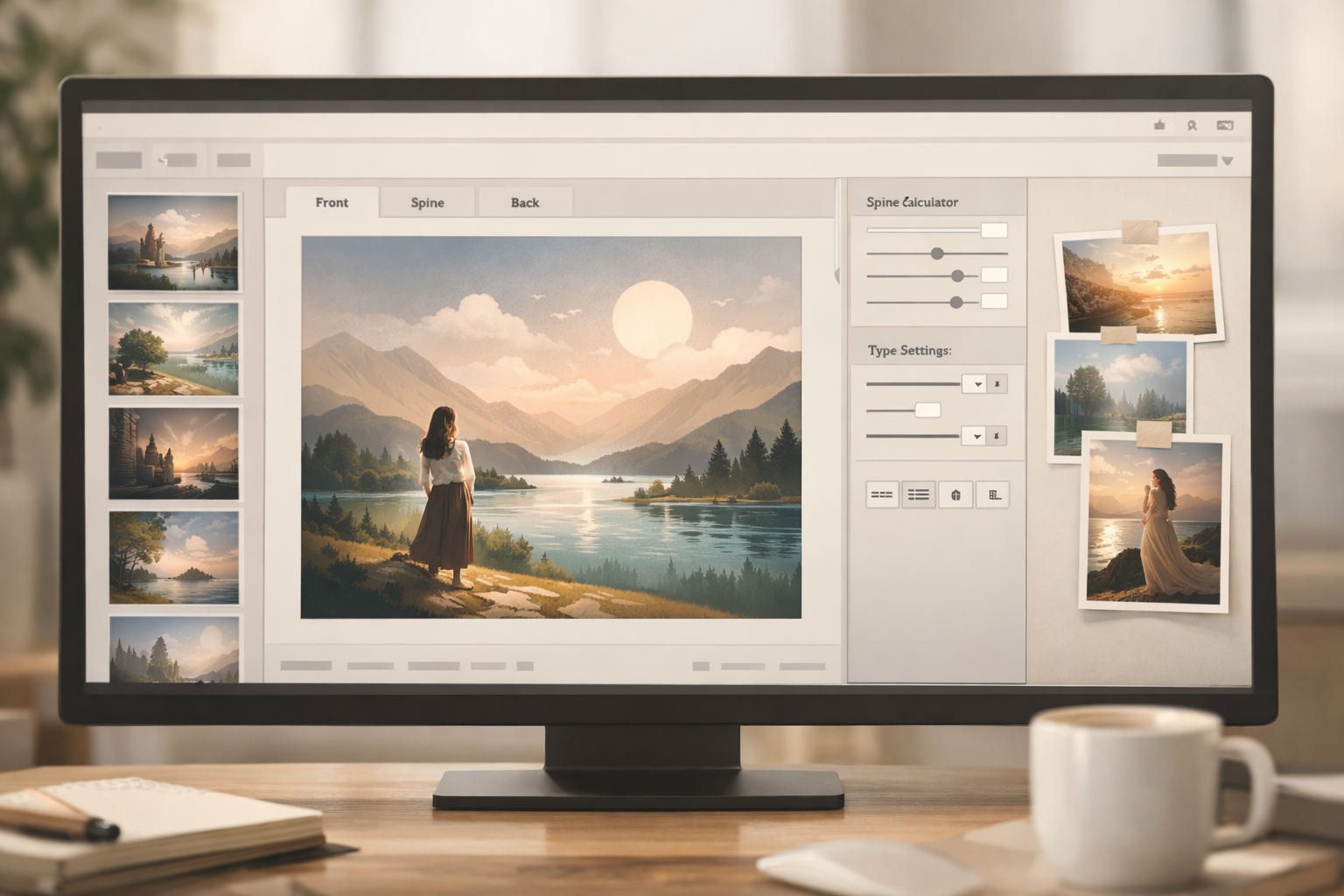
Why authors search for "bookstudio"
People who type the query bookstudio are usually trying to find one of three things: a design studio that makes book covers, a browser-based cover tool (often called a "cover studio" or "coversheet generator"), or a specific product or service with that name. For a self-publishing author preparing a professional cover, the underlying questions behind that search tend to be practical: Which option fits my budget and timeline? Will the output be KDP‑ready? How do I preserve commercial image rights? This guide answers those practical questions and gives a step-by-step workflow you can use whether you pick a freelance designer, an agency, or a browser-based cover studio.
What "bookstudio" can mean in practice
- Design agency or studio — a team that delivers a finished cover concept, artwork files, and often rounds of revisions.
- Freelance cover studio — one or two people offering bespoke covers, often via portfolio sites or marketplaces.
- Browser-based cover tool (cover studio) — software that helps you build covers in your browser using templates, AI artwork, or component-based editors.
- Front-only coversheet generators — fast tools that create ebook/audiobook front images (useful for thumbnails and ebook listings) but that may not export full-wrap print files without extra work.
How to decide which route you need
Match the choice to your goals and constraints. A quick decision checklist:
- Goal: Are you publishing only an ebook/audiobook, or do you need a print-ready full-wrap cover for paperback/hardcover? If you need print files, favour options that export full-wrap PDFs with correct spine calculations.
- Budget and timeline: Agency-level studios typically cost more and take longer than browser tools or freelancers. Browser tools can be fast and inexpensive but may require additional work to reach print standards.
- Customization and originality: If you need unique commissioned art or a highly original concept, a designer or illustrator is usually the right choice. If you prefer speed and iterative testing of thumbnails, a cover studio or AI-assisted tool can be better.
- Rights and licensing: Confirm that the output gives you the commercial rights you need (print, ebook, audio, and derivative uses). See our licensing checklist at: Book cover image licensing: key questions.
Practical feature checklist for evaluating a "bookstudio" or cover tool
When you evaluate a browser-based cover studio or an unfamiliar cover tool, check whether it provides the following:
- Full-wrap exports (front, spine, back) in print-ready PDF with correct trim, bleed, and spine calculation. If the tool only produces front images, confirm a clear path to convert the design into print files. See: Coversheet generator: when to use a front-only cover tool.
- Spine calculator/templates that accept trim size, page count, and paper type so you can verify exact spine width — or at least export a template you can open in a layout app. Our guide to KDP templates helps here: Amazon KDP Book Cover Templates.
- Thumbnail preview and export so you can test how designs read at the small sizes used in stores. Use a repeatable thumbnail test; see: How to Test Whether a Book Cover Works at Thumbnail Size.
- Licensing clarity and written terms that let you publish and sell without additional fees or unclear restrictions.
- Typography control — the ability to set type, weight, kerning, and to embed or license font files for commercial use. If font choices are limited, confirm they’re commercially licensed for book covers.
- Export quality — 300 DPI or vector exports for print, and sRGB/CMYK guidance where needed. Low-resolution exports are a red flag for print use.
- Revision and versioning workflow that lets you save iterations and fall back to earlier versions if needed.
A step-by-step workflow authors can use with any cover studio
Below is a practical, repeatable workflow you can follow whether you use Cover Studio AI, another browser tool, or a designer.
-
Research and market fit (30–60 minutes)
Collect 8–12 title-cover examples that perform well in your category. Note visual patterns — color palettes, composition, photographic versus illustrated styles, and typography. If you’re unsure where to start, our guide on how covers change between fiction and nonfiction is helpful: How cover design changes between fiction and nonfiction books.
-
Decide output needs
Do you need a front-only ebook image, a full-wrap paperback cover, or both? If you need print, plan for spine calculations and bleed now to avoid rework. See our KDP preflight checklist: Amazon KDP Cover Preflight Checklist.
-
Create a short visual brief (10–20 minutes)
Even when using a tool, a concise brief keeps iterations focused. Include: one-sentence premise, target audience/competitive titles, required text (title, subtitle, author), must-have or banned imagery, and three reference covers. Use the template in: How to Build a Visual Brief for a Professional Book Cover.
-
Prototype quickly and test thumbnails
Make 4–6 variants and run a thumbnail test. If you’re using a cover studio, export thumbnail images at typical store sizes and test them on real screens or with simple A/B feedback. Our thumbnail testing protocol is here: Thumbnail test protocol.
-
Check licensing and rights
Before finalizing, verify the image and font licences allow commercial use and printing. Use the checklist at: Book cover image licensing: key questions.
-
Preflight for print and export
Run a preflight: correct trim, spine, bleed, safe areas, barcode space, and 300 DPI artwork. If your chosen tool cannot produce a final PDF, export high-resolution assets and prepare the wrap in a layout app or with a designer. See: KDP preflight checklist and Preparing cover artwork for paperback, hardcover, and ebook editions.
-
Upload, verify, and soft-launch test
Upload to KDP or your chosen store and preview the cover in their previewer. If you can, run a short paid or organic thumbnail ad test or ask a small group of readers for feedback before committing to wide promotion. If performance is weak, use the checklist in our article about when to redesign: When to redesign a book cover after publication.
Quick visual brief template you can copy
Paste this into emails, tickets, or a cover studio request form:
One-line premise: [e.g., "Contemporary domestic thriller about a missing sister"]
Audience/competitive titles: [e.g., "Fans of Lisa Jewell; similar covers: Title A, Title B"]
Required text: [Title, Subtitle, Author name — exact spelling and punctuation]
Must-have visual elements: [e.g., "single figure in doorway; cool blue palette"]
Do-not-use: [e.g., "no cityscapes, no gothic fonts"]
Output required: [e.g., "ebook front + paperback full-wrap PDF for 6x9; spine calc: 280 pages; barcode on back"]
License: ["Commercial print and ebook rights must be included; confirm font licenses"]
Thumbnail priorities: ["Title legibility at 120x160 px; strong contrast between title and background"]
How to use a browser cover studio and still be KDP-safe
Browser tools are great for speed and iteration but they vary in output quality. If you choose a browser-based cover studio, make sure it either exports a full-wrap PDF with correct spine math or lets you export layered high-resolution assets you can assemble into a print-ready cover. Our article about converting coversheet outputs explains practical steps: Coversheet generator: when to use a front-only cover tool.
Common red flags when evaluating a "bookstudio"
- No clear licensing terms or surprise fees for commercial or print use.
- Only low-resolution or front-only exports with no path to full-wrap PDFs.
- Limited typography control that prevents title legibility at thumbnail size.
- No spine calculator or unclear spine math (watch for drift between template and KDP preview).
When to hire a designer instead
Choose a designer if you need:
- Commissioned original illustration or photography with transfer of copyright.
- A strong, unusual concept that requires art direction and multiple rounds of custom revisions.
- Guaranteed commercial transfer or exclusivity in the contract.
Next practical steps
- Clarify your output needs (ebook only vs full print wrap).
- Make a short visual brief using the template above.
- Try a quick prototype in a browser cover studio or an AI prototyping tool, then run a thumbnail test.
- Confirm licensing and run a KDP preflight before final upload.
Further reading on Cover Studio AI and related topics
If you want practical next steps tailored to self-publishers, see these Cover Studio AI resources:
- How authors searching for “cover studio” should evaluate and use a cover design tool — a short guide on choosing a cover studio workflow.
- What authors searching for “coverstudio” really want — explains the common needs behind that search and how to align a tool to them.
- How to Write an Effective AI Book‑Cover Artwork Prompt — if you plan to prototype covers using AI inside a browser tool, this article provides templates and iteration tips.
If you’d like, share what you mean by “bookstudio” (a tool name, a feature you need, or an agency) and your format (ebook, paperback, hardcover). I can suggest the fastest, lowest-risk route to a market-ready cover and link to the exact Cover Studio AI tool or article that will help you next.