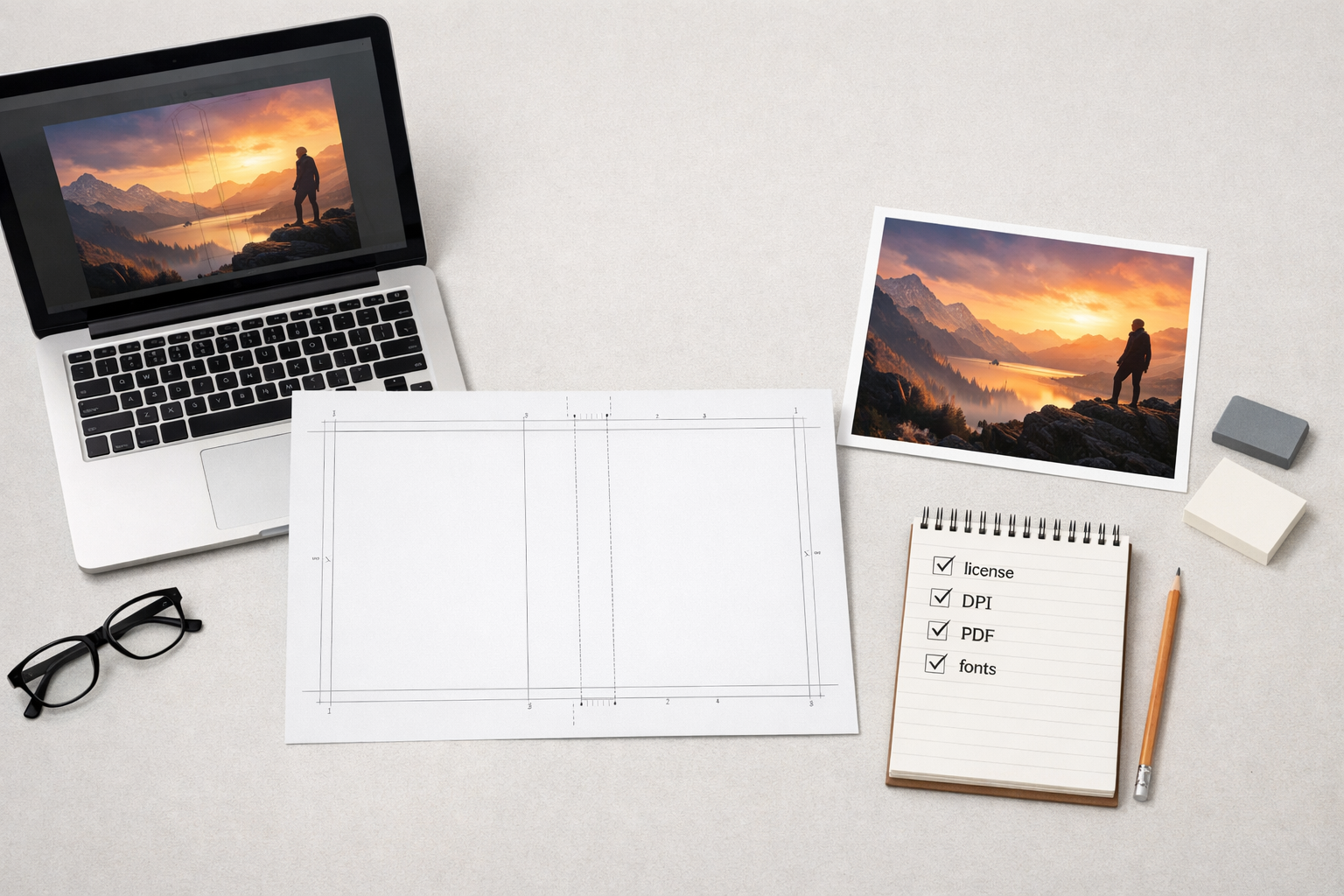
If you searched for the term "coverjig" and landed on a page or product you don't recognise, you're not alone. Many authors discover small web apps, marketplaces, or one‑person services when researching cover tools. The question isn't whether the name is familiar — it's whether the tool's output and policies are safe and practical for self‑publishing on Amazon KDP and other printers.
What this article is for
This article helps self‑publishing authors do three things when they encounter an unfamiliar cover tool (called here “coverjig” as an example):
- Quickly vet the site and its files so you don’t waste time or risk a rejected upload.
- Verify licensing and file specs so artwork, images, and fonts are safe to publish.
- Convert simple exports — front covers, JPEG mockups, or low‑res images — into production‑ready Kindle, paperback, or hardcover files.
Start with a fast vetting checklist
Before you download anything or pay, answer these basic questions about the tool or service:
- Who runs it? Look for an About page, team names, or a physical business address. If you can’t find anything, treat the tool like an unverified beta product.
- What files does it export? Does it produce front‑only JPG/PNG, a full‑wrap PDF, or layered files (PSD/AI)? Front‑only images are useful but need more work for print.
- What resolution and color options are available? Check whether you can download 300 dpi images or a CMYK PDF for print, and whether the tool exports sRGB for ebook covers.
- Are fonts embedded or licensed? Commercial fonts require licences for book covers. Confirm whether the tool uses bundled free fonts, requires you to supply fonts, or embeds fonts in exported PDFs.
- What license covers the artwork and stock? If the tool uses stock photography or AI‑generated imagery, check the license terms and whether commercial use for book covers is allowed.
- Is there an obvious pricing model and refund policy? A clear pricing page and refund policy are signs of a legitimate service.
Red flags that mean “don’t trust yet”
Watch out for these warning signs. They don’t always mean the tool is useless, but they do mean you should proceed cautiously.
- No contact details, no owner name, or only a generic contact form.
- Files are delivered at tiny sizes (e.g., 72 dpi or 500 px wide) with no higher‑res option.
- Licensing language is absent or vague — particularly for commercial use and resale rights.
- Exports are flattened JPGs only and the seller expects you to publish those for print without guidance.
- Payment is only via an untraceable method and there’s no documentation or invoice.
Checklist: file and export items you must verify
If the tool passes the basic vetting, make sure the files you receive meet these technical and legal requirements before you attempt a KDP upload.
- Export format — For Kindle (ebook) a high‑quality JPG or PNG at the correct pixel dimensions is fine. For paperback/hardcover you’ll need a full‑wrap print PDF or a front, spine, and back laid out to the exact wrap size. If the tool only provides a front‑only image, plan to convert it into a full‑wrap using a template or cover tool.
- Resolution — Print artwork should be 300 dpi at final print dimensions. Images at low resolution can look fine on screen but will print poorly. If the tool doesn’t allow 300 dpi exports, request higher resolution or use a different provider.
- Color space — KDP and most print providers accept PDF files; many printers expect CMYK or convert RGB to CMYK during processing. If you can export CMYK or a print‑ready PDF, that’s preferable. Otherwise, keep the source files and use a cover generator that handles color conversion correctly.
- Spine and bleed — A full‑wrap print cover must include bleed and the correct spine width based on trim and page count. If the tool doesn’t calculate spine width, you’ll need a template. See our guide on using templates and spine calculators for exact measurements: Amazon KDP Cover Sizes and Spine Width Calculator Guide and Print Cover Calculator and Templates.
- Fonts and embedding — Confirm whether fonts are embedded in exported PDFs or if the service uses open licensed fonts. If fonts aren’t embedded, the publisher (or a cover editor) must supply them to export a print‑ready PDF. Learn how to choose book cover fonts: How to Choose the Right Book Cover Font for Amazon KDP.
- Image licensing and AI content — If the artwork includes stock images or AI‑generated art, check whether the license permits commercial use for book covers and redistribution. If licensing is unclear, use artwork from reputable sources or generate your own with clear licensing. Our article on AI image generators explains what to check: What is the Best AI Image Generator for Amazon KDP Authors?.
- Metadata and layers — Layered source files (PSD, AI) make later edits easier. If the tool only gives flattened JPGs, ensure you can get a layered or vector version if you anticipate changes.
How to turn a front-only export into a KDP print cover
Many simple cover makers only produce front‑panel artwork. That’s fine — you can turn the front into a full wrap by following a basic workflow:
- Confirm your trim size and page count. You need these to calculate spine width and the full wrap dimensions. See our trim size guides: How to Choose a Book Trim Size and What Book Cover Size Should You Use?.
- Get a full‑wrap template. Use a template that accounts for bleed and spine measurements. Templates take the guesswork out of layout and reduce the risk of misplacement or cutoffs. Learn how templates work: How to Choose and Use a KDP Cover Template Generator.
- Place the front artwork into the template. Center the main artwork on the front panel and extend background elements to cover the spine and back where appropriate. Keep important text and faces inside safe margins.
- Add back cover elements — blurb, author bio, barcode area, and spine text. Use our back cover guide for layout and content placement: How to Design a Book Back Cover.
- Export a print‑ready PDF and preflight it. Run a preflight checklist for bleed, resolution, color, and barcode placement before uploading to KDP. Follow our KDP preflight checklist: Amazon KDP Cover Preflight Checklist.
Questions to ask the seller or support team
If you plan to buy or license a cover from an unfamiliar tool, ask these precise questions before you pay:
- Can you supply a print‑ready PDF for my specific trim size and page count?
- Do you embed fonts and include a list of any licensed stock images used?
- Do you provide layered source files (PSD, AI) or only flattened images?
- What are the commercial usage terms and license details for any images or AI outputs used?
- Can you produce 300 dpi exports and CMYK print PDFs if required?
- Do you offer a refund or revision policy if the file fails KDP checks?
How to compare an unfamiliar tool against established options
When you find a name like “coverjig” in search results, compare it to established approaches. Use these comparison points rather than price alone:
- File flexibility — Can the tool give you the file type you need (PDF/PSD/AI/JPG) or only one low‑res format?
- Production support — Does the vendor explain spine calculation, bleed, or barcode placement, or do they leave you to figure it out?
- Licensing transparency — Are image and font licenses documented?
- Revisions and edits — Can you request typography adjustments or a different crop after purchase?
- Community and documentation — Well‑supported tools provide templates, help articles, and examples. See our practical guides that outline what to expect from a cover tool: What authors searching for “coverstudio” really want and What authors mean by “cover studios”.
Practical paths forward depending on what you receive
Here are recommended next steps after you obtain files from an unfamiliar cover maker.
Case A: You receive a high‑resolution, print‑ready PDF for your trim and page count
Verify fonts are embedded and stock licensing is documented. Run a preflight check using our checklist and upload to KDP or request a second opinion from a trusted cover tool. A quality PDF may be ready to publish after checks.
Case B: You receive a front‑only 300 dpi image
Use a template or a cover editor to create a full wrap and add back cover content and barcode area. Our articles on converting front‑only covers and using templates are useful here: Coversheet generator: When to use a front‑only cover tool and How to Choose and Use a KDP Cover Template Generator.
Case C: You receive only low‑res or small JPGs
Ask the seller for higher resolution files or request layered originals. If that’s not possible, you’ll need to replace the artwork with higher‑res images or recreate the design in a cover editor that can produce production‑quality output. Read our guide on AI image generators and selecting source art for KDP: What is the Best AI Image Generator for Amazon KDP Authors?.
When an unfamiliar tool is worth using
Small or new tools can be useful if they meet these conditions:
- The site documents commercial licensing for images and fonts.
- It can export high‑resolution files or layered source files on request.
- There’s a clear path to obtaining a print‑ready wrap (template, spine calculation, or export option).
- Support replies promptly and answers technical questions accurately.
How Cover Studio AI can help if you want to convert or verify files
If you end up with front‑only artwork or a vendor PDF you want to verify, Cover Studio AI provides tools and guides that simplify the conversion and preflight steps:
- Create or import front artwork and place it into KDP‑correct templates: KDP Cover Templates (see templates and calculators).
- Run through a production checklist before export: Amazon KDP Cover Preflight Checklist.
- Turn one concept into Kindle, paperback, and hardcover files with correct dimensions: Kindle vs. Paperback vs. Hardcover.
Practical search tips so you find trustworthy tools
When researching obscure names like “coverjig”, refine your search and look for these signals:
- Search the tool name with words like "review", "license", "export PDF", or "KDP" to find other authors' experiences.
- Search for the domain or company name on social platforms and author communities to see examples of published covers made with the tool.
- Compare the tool’s export samples against KDP specifications and our guides before purchasing.
Final advice
Discovering a new or niche cover maker can be promising — just move forward methodically. Verify file specs, confirm licensing, and be clear about the output you need before you pay. If the tool provides only front‑only JPGs, that’s not a dead end: use templates and a preflight checklist to convert the artwork into production‑ready files.
For practical, step‑by‑step help converting exports or choosing a tool that produces KDP‑ready files, see our companion article comparing tools: Best Tools for Creating and Optimizing Amazon KDP Book Covers, and the template guide: How to Choose and Use a KDP Cover Template Generator.